1
Basic Connection
AP Configuration with SMT User Interface
Configuring AP with Telnet
STEP–1. Power on Aphelion AP
1.
2.
3.
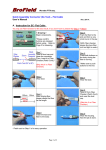
Connect power supply to PoE injector with the AC power cord provided as shown in
the above diagram. The yellow POWER LED on the PoE will be on when the PoE
has adequate power supply.
Connect Aphelion AP to POWER & DATA OUT port on the PoE with MIL-C-5015
IP67 Cat-5 Ethernet Cable provided. The red ACTIVE LED indicates if the AP has
successfully powered-on.
Connect DATA IN port on the PoE injector with Ethernet cable to the LAN that the
AP associates with.
STEP–2. Verify IP address setting
Configure the network settings on your PC to obtain an IP address. Computer uses IP
addresses to communicate with each other across a network, such as a LAN. The default IP
address of Aphelion AP is 192.168.1.1 so the PC needs to be set in the same net scope
to access AP with Telnet.
1. Go to Control Panel of your PC and double-click Network Connections icon.
2. Right click Local Area Connection and select Properties.