1
Getting Started
We will begin this lesson by creating a simple program. Once you learn how
to find commands and understand the ClassPad’s syntax (style) you will be
able to create interesting programs.
When we write a program, the text we type in is called code. When we run a
program, our code is followed exactly. In our programs, we are telling the
ClassPad exactly what to do and the ClassPad will do exactly what we tell it
to do. This is why entering text in the correct format is so important.
If you are interested in learning more about a particular command, please try
searching the ClassPad’s User Manual.
PART I
In this part, we will create a simple program.
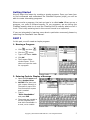
1. Naming a Program
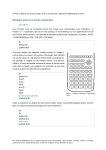
m and then p
Click the O button
a. Click
b.
c. Type in the name: Hello
d. Click OK
e. The Program Editor
window opens. This is
where we input the code
for a program.
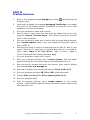
2. Entering Code to Display a Message
a. Open the I/O menu and
select Output/Print
b. NOTICE Print was input
with a space following it.
The space is part of the
Print command’s syntax
and is needed.
c. Type in
“Hello ClassPadder”
and press EXE
d. The quotes are needed to
let the ClassPad know
that Hello ClassPadder is
a word, not a variable
Copyright (c) 2008 CASIO COMPUTER CO., LTD. All Rights Reserved.
2