1
Forecasting
Forecast Administration
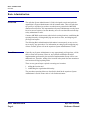
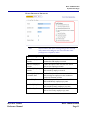
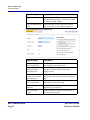
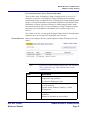
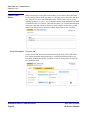
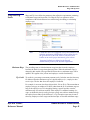
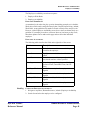
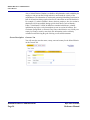
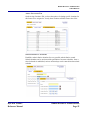
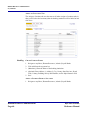
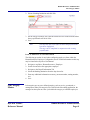
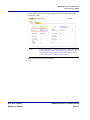
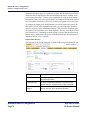
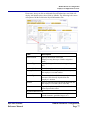
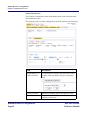
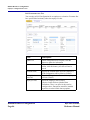
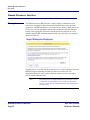
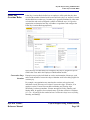
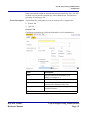
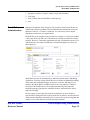
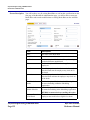
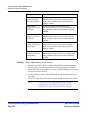
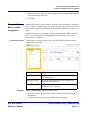
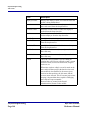
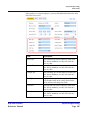
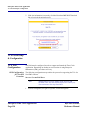
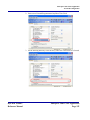
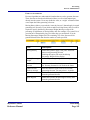
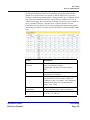
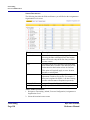
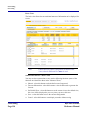
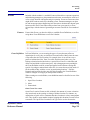
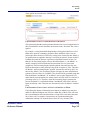
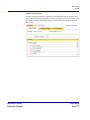
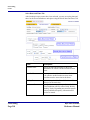
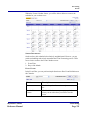
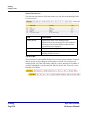
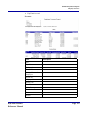
Enabling CONFIGURE FORECAST PERFORMANCE
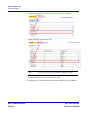
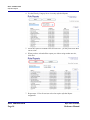
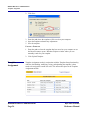
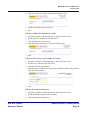
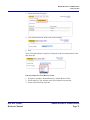
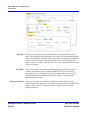
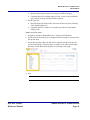
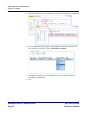
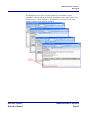
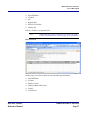
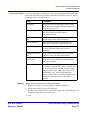
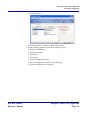
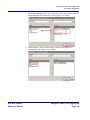
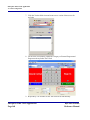
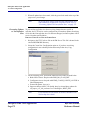
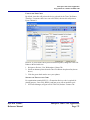
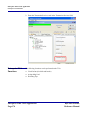
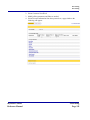
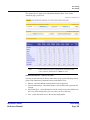
1. Navigate to Forecasting | Admin | Forecast Performance
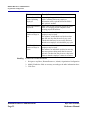
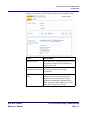
2. Enter values in the Minimum Percentage, Maximum Percentage and Rating
fields
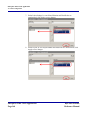
3. Enable Reason Required (optional)
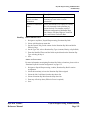
4. Click Add to create a new entry row
5. After entering all data, click Save
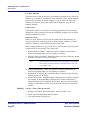
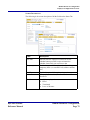
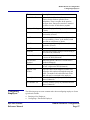
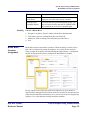
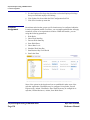
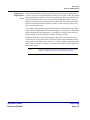
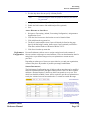
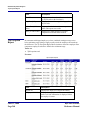
Forecast Edit Since many users might have the ability to edit a generated forecasts, organizations
Restriction can restrict the degrees to which forecasts may be edited. For example, enterprises
may want their store managers to have limited editing power, whereas a regional or
district manager might need greater editing capabilities.
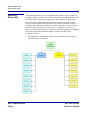
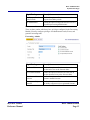
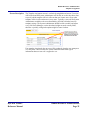
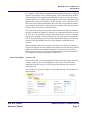
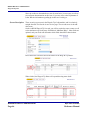
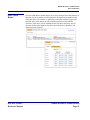
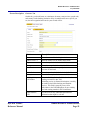
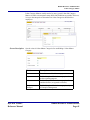
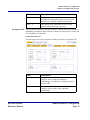
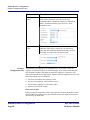
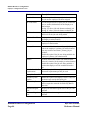
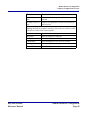
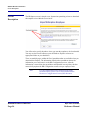
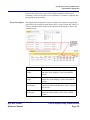
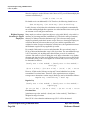
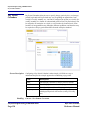
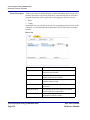
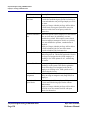
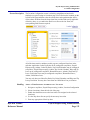
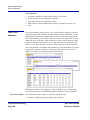
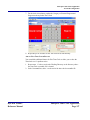
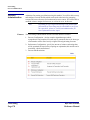
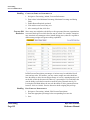
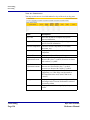
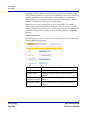
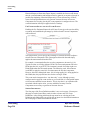
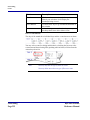
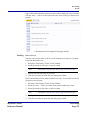
In Edit Forecast Description, percentages of variance may be established for all
users and user roles. For instance, you may want to assign users who should not
have the ability to edit a forecast the percentage of zero (0), meaning that they will
not be able to edit the forecast at all. However, a percentage of 5% would allow the
user the ability to edit the forecast above and below the generated value by 5%.
Leaving the field blank allows the user role the ability to edit a generated forecast
between -100% to +1000%. Exercise discretion when assigning this privilege.
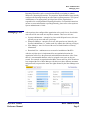
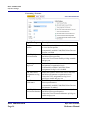
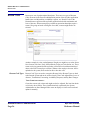
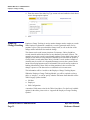
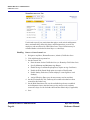
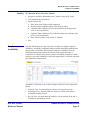
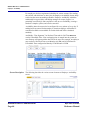
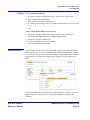
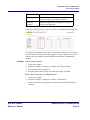
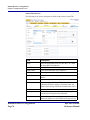
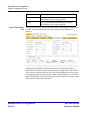
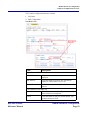
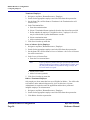
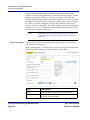
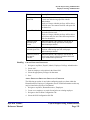
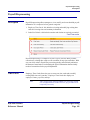
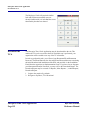
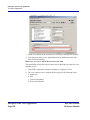
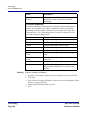
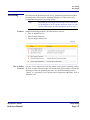
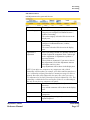
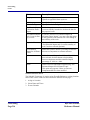
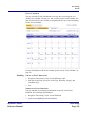
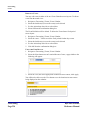
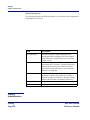
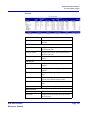
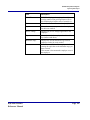
Enabling EDIT FORECAST DESCRIPTIONS
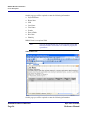
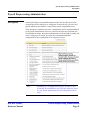
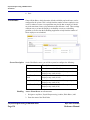
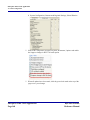
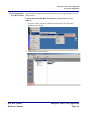
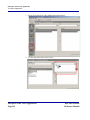
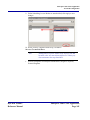
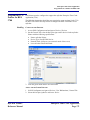
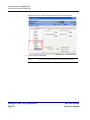
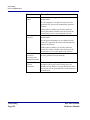
1. Navigate to Forecasting | Admin | Edit Forecast Descriptions
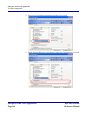
2. Enter the appropriate percentage to the corresponding user/user role
3. Save
Forecasting
Page 192
myLabor Feature
Reference Manual