1
PDQuest User Guide
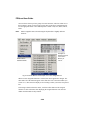
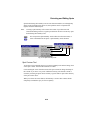
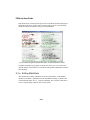
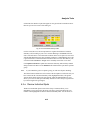
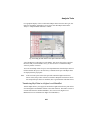
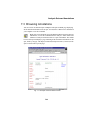
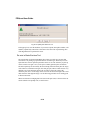
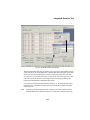
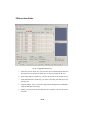
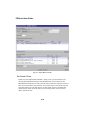
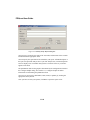
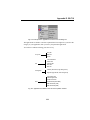
If you have created an annotation link for the spot in a URL category (see section
7.2.b, Annotation Categories), that link will appear in the page under the Link
column. Click on this link to open the database or Web site specified by the category
and link to the protein information.
Use the Print command in the browser window to print the annotation information.
The displayed page is a temporary file that can be saved by using the browser’s Save
As command. You can then include saved pages on your Web site or e-mail them to
colleagues.
7.4 Creating Annotations from Analysis Sets
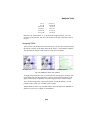
Analysis sets are used to group spots in a MatchSet that are statistically and
scientifically meaningful. After you have created an analysis set, you can create an
annotation describing the spots in the set.
Note:
You can create annotations for individual spots or other groups of spots using the
Annotation Tool.
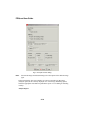
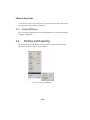
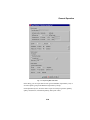
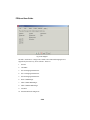
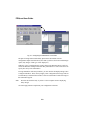
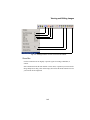
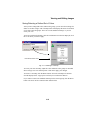
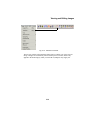
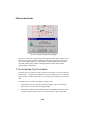
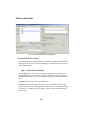
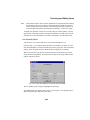
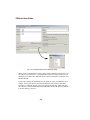
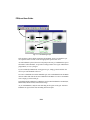
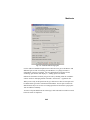
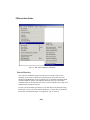
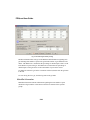
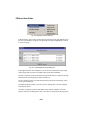
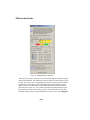
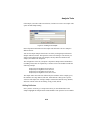
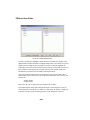
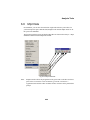
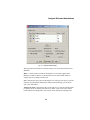
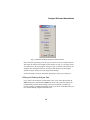
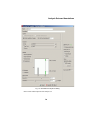
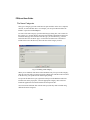
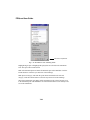
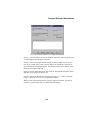
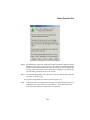
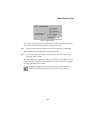
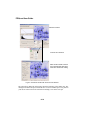
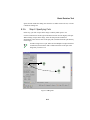
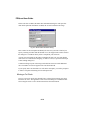
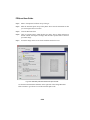
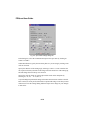
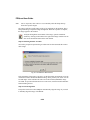
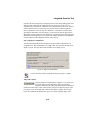
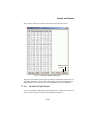
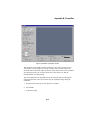
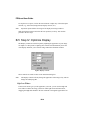
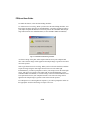
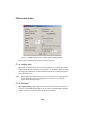
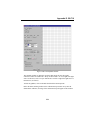
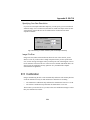
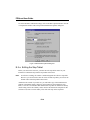
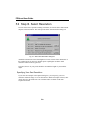
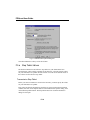
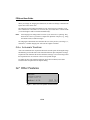
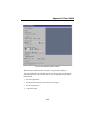
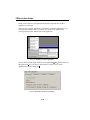
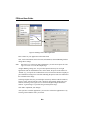
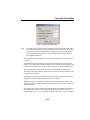
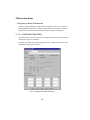
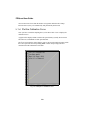
With the MatchSet open, select Create Annotation from Set from the Analysis > More
Annot Tools submenu. The dialog box will open.
7-34