1
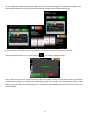
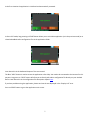
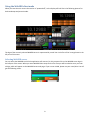
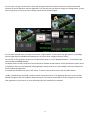
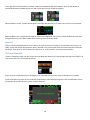
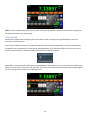
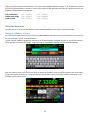
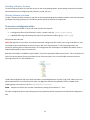
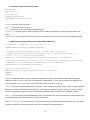
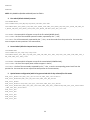
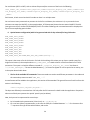
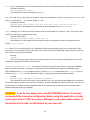
Recalling a Memory location To recall a memory location you just have to click on the corresponding button. All the settings saved for that location will be loaded from the configuration file (frequency, mode, info, etc.). Clearing a Memory location To clear a memory location you have to long click on the corresponding button and when asked to enter name and alias just delete everything and press OK. The memory button will be renamed to the original Mx. Transceiver configuration files For each transceiver available in direct CAT mode two files are required: A configuration file with the filename < brand>_<model>.radio (ex. yaesu_ft450.radio) A 480x320 JPG image representing the radio, with the filename <model>.jpg (ex. ft450.jpg) All filenames are lowercase. NOTE: Starting with version 0.8 you can edit the transceiver configuration files in two ways: using a text editor on a PC connected to your Android Device or directly on your device. For the last option, in the startup page select your transceiver and long press on HELP blue button. The configuration file will be open in the default text editor. Press on Android BACK button to return to Pocket RxTx. Both files are located in a subfolder named “Radios” of the main application folder named “prxtx”. This is located in the root of the internal device SD card (not external, even if that one exist). This is how the folder structure looks on a Samsung Galaxy Tab 7.7 with Android 4.2.2. To edit radio configuration file use a simple text editor, not Word/Notepad or any other “high level” editor as this can add unexpected chars in the file which can make the application behaves unexpectedly. The file is based on the following general structure for each line: <parameter>=<values>. NOTE: Anywhere in the file you can enter comments by starting the line with the “;” char. The radio configuration file has the following structure (explanation with the example of the Elecraft K3 configuration file): 21