1
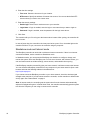
3. Enter the account information to create an account with BlueSpray. If you have already created
an account, click Use existing account and enter your email address and password.
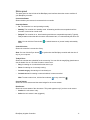
• Name. Enter the name to be used for the account.
• Email. Enter the email address to be used for the account.
• Password. Enter a password for the account.
4. Click Submit.
Using the BlueSpray controller
After your BlueSpray controller is set up, it should run automatically. You can always access the
BlueSpray user interface for manual operation and configuration tweaks.
Watering a zone manually
If you want to water a zone outside of a schedule, you can do it manually.
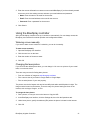
To water a zone manually
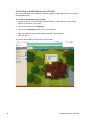
1. Open the BlueSpray user interface.
2. Click the zone icon on the lawn.
3. Enter the number of minutes to water.
4. Click OK.
Changing the lawn picture
If you don't like the default picture lawn, you can change it. You can use a picture of your actual
lawn, or one that is similar.
There are many sources for finding lawn pictures.
•
From our collection of images at www.bluespray.net/lawns
•
Take a screen shot of your lawn in Google Earth or Google Maps.
•
Take an aerial picture of your own property.
The picture must be 4x3 aspect ratio and at least 800 pixels wide and 600 pixels in height. The
image must be hosted on the Internet. There are many free picture hosting services on the
Internet, such as Imgur, Google+, or Flikr.
To change the lawn picture
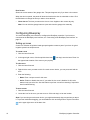
1. Find a picture, or host your own on the Internet. Copy the URL.
2. In the BlueSpray user interface, click the Settings tab, then click the Operations tab.
3. Under Lawn picture, specify the address (URL) where the picture is hosted on the Internet.
4. Click OK.
BlueSpray Irrigation Controller
21