1
an ISO 9001:2008 certified company
Now you can complete the following steps to install the latest version of this program
1. Disable any automatic virus detection programs and exit all applications before running this installer.
2. Insert the MaxXmtr Serial Interface Program installation CD and follow the instructions on the screen.
3. If your PC has the Auto Run feature disabled, the SETUP.EXE program can be started from either Windows Explorer
or by the following sequence:
a. Click on Start then click on Run.
b. Select Browse - Find the installation CD and double click Setup.exe.
4. After the installation is complete, re-enable any virus detection programs you may have disabled.
5. To run the Serial Interface Program, press Start, All Programs, then find MaxXmtr\MaxXmtr and click.
6. If any problems occur, reboot, and follow the removal instructions above. Then reboot and attempt the install again.
If the problem persists, please contact Max Machinery.
Starting the Interface Program
1. Remove the lid of the transmitter to reveal 1/8” serial port. See the transmitter’s user manual for assistance.
2. Next, insert the 1/8” serial plug into the connector on the transmitter circuit board.
3. Connect the serial cable to the serial port on the PC. If your computer does not have any form of serial port, then
the USB to serial adapter can be used.
To use the USB port you must first install the proper driver on your computer. Please refer to the “Readme” file
on the CD before using the USB adapter
4. Ensure the transmitter is powered up, and launch the MaxXmtr Interface Program by either selecting MaxXmtr from
the start menu, or by double-clicking on the MaxXmtr executable located in the installation directory.
A dialog box will prompt the user to select the serial port. Choose the port to which you have connected the
serial interface cable and press Continue.
If the transmitter is not detected, an error message will be displayed. Verify that the transmitter is connected to
the serial cable and powered up, then press Retry. A red or green LED should be lit on the transmitter circuit
board if it has power.
If the wrong serial port was selected by mistake, the MaxXmtr program will need to be closed and restarted with
the correct serial port indicated.
If the connection is not successful, contact your Max Sales Representative for assistance.
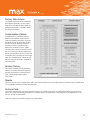
Once serial communication is established, the program will automatically read the transmitter data and display the
software version on the Information screen.
SE-M-001 Version 3.0.4
3