1
DINPAD-M
fig.2
Test
fig.1
fig.4
fig.3
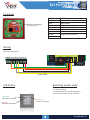
When DINPAD-M is connected to EWS Controller, settings must be done
in the PROS Software and in the DINPAD-M Keypad.
Example:
Create a User to access with Card or PIN Code. The Card Number is
8744987 and the PIN Code 12345.
Settings in the PROS Software
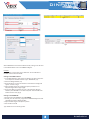
1. In the PROS Software, right click on the Reader and select properties.
In the Properties window select for Type: “DINPAD-M” (1.1)
2. Select the Wiegand 26bit (1.2)
3. Press Save & Exit. In the event window a confirmation message will
appear as shown in fig.2
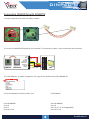
4. Adjust the PIN Length. Go to Settings/ System parameters. For
Keycode length select 5 digits. (fig3)
5. Go To Users Menu and select the user. In the Field User ID (Card
Number) write 8744987. In the Field ”Keycode” write the PIN Code
12345. Save the User. (fig.4)
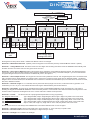
Settings in the DINPAD-M
1. Enter the Menu of DINPAD-M. Press B+000000.
2. Press 6, press 4. The Preset, programs the DINPAD-M Keypad to work
with EWS controller in Wiegand 26bit.
3. Adjust the PIN Length. Press 4, then press 5.
4. Exit the Menu with A
Type 12345 and access will be granted.
3
DINPAD-M