1
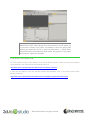
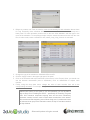
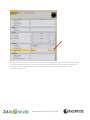
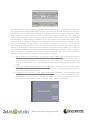
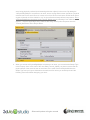
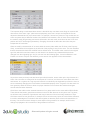
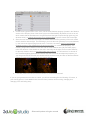
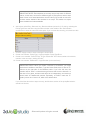
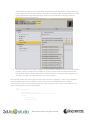
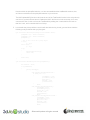
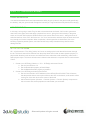
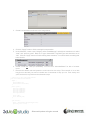
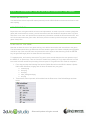
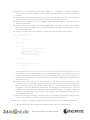
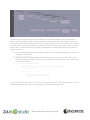
2. Before we create a new Task, we need to create a new Member for each animation that we have
for Trog. Eventually, these members will be used to create a Task. You should currently see a
blank panel. For each animation, double click on the text <New Member> and then type in the
name of the animation. To keep things simple, keep the names the same as those from the .dae
files. In other words, create a member for idle, attack, jump, jump_forward, run and walk.
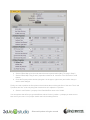
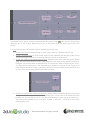
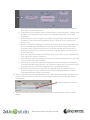
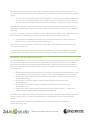
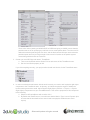
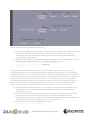
3. Change the type of the member to vkAnimationResourcePtr.
4. Click the “Apply” button in the upper-right part of the panel.
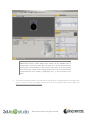
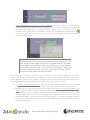
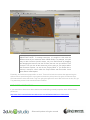
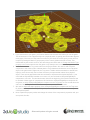
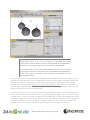
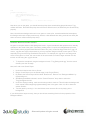
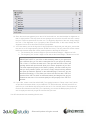
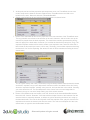
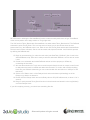
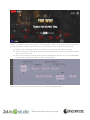
5. Click on the Assemble tab at the bottom-left of the screen. In the Property View, you should now
see the behavior characterBe (next to vkSkeleton). Click on characterBe to expose each
member.
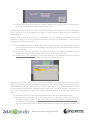
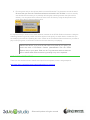
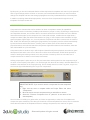
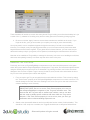
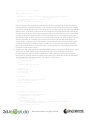
6. Finally, using the drop down menu, change the value of each member from null to the
corresponding animation. For example, change the idle member from null to the idle animation.
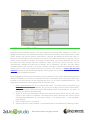
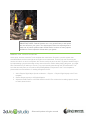
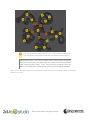
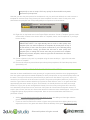
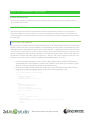
IMPORTANT NOTE: at this point (if you are interested), you will be able to
skip to Step 15 on “Polishing the Game” – specifically on controlling Trog with
VSL. We’ll introduce schematic scripting here and do some introductory
character controls, but we’ll need to refine these controls later in the tutorial.
We recommend that beginning users follow along here, but advanced users
of this tutorial can jump to the character controls in Step 15 and then continue
in Step 4 below.
© Dassault Systèmes. All rights reserved