1
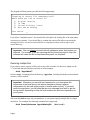
The obs_backup program is customized to back up only the relevant directory structures on your
system such as your correspondence and database data, and avoids wasting valuable resources
backing up programs and system files which never change and could be restored from their
respective distribution media if needed.
As part of your initial installation, we have configured your system to invoke obs_backup
automatically at night with all appropriate command options. You should never have to run this
program manually.
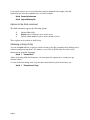
The fetch program is your tool to restore files to your system. You can use this utility to restore a
single file or a set of files matching a “wild-card” pattern (like “/home/sales/Feb*”).
The next sections cover both of these utilities in detail.
Our Backup Technology
OBS maintains a mirror image of the directory structures you have specified in your configuration
file on the remote server. There is no concept of “full backup” versus “incremental backup” in
OBS because every backup updates this mirror image to be a true reflection of your system,
including removing files which you have deleted on your system, without having to actually copy
all the files or guessing which files should get updated based on the date of your last backup.
To accomplish this, we use a combination of utilities such as rsync and ssh, and we compress the
data before it is uploaded in order to maximize efficiency.
Doing a Backup
Manual backup
Simply invoking the command obs_backup as the superuser (“root”) will trigger a system
backup. Normally, however, this is done automatically through a crontab entry (“crontab” is the
Linux task scheduler). This will have been set up by CottageDATA when the software was
initially installed, so you should never need to manually do a backup except for testing or
maintenance purposes.
Scheduling backups
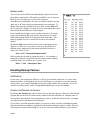
The following crontab entry will invoke obs_backup at 3 AM every day and will redirect any
output to a file in /home/save for reference purposes:
0 3 * * * /home/bin/obs_backup > /home/save/obs.cron 2>&1
NOTE: If your OBS software was installed by CottageDATA when you
subscribed to the service, a suitable crontab entry has already been created for
you, so there is no further action required on your part.
Page 2