1
HTTP:// WWW.SUNCTI.CO.TH
1.
2.
3.
4.
USER MANUAL
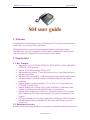
LAN: one Ethernet 10baseT RJ-45 jack interface.
PHONE: One phone (FXS) RJ-11 jack interface.
LINE: One line (FXO) RJ-11 jack interface
One 5V power adapter interface. It is used to connect to the power adapter going
with the unit. If you connect the unit to some other power adapter, we are not
guarantee the unit works properly.
2.3. Operation Status
1. The unit is set to PSTN connection status by default. When phone is hooked, the unit is
PSTN connection status. When an inbound VOIP call coming, the unit will automatically
change the connection status to VOIP immediately.
2. Using PSTN and VOIP switch button (KEY”VOIP”) selects outbound call connection
path. The default is PSTN connection.
3. During PSTN call, an inbound VOIP call coming, VOIP connection status indicator
will blink. Click the switching button (KEY”VOIP”) to receive the VOIP call. The PSTN
call is terminated when switching button is clicked.
4. During VOIP call, an inbound PSTN call coming, PSTN connection status indicator
will blink. Click the switching button (KEY”VOIP”) to receive the PSTN call. The VOIP
call is terminated when switching button is clicked.
3. Installation
Please make sure you have the following items in the product package you received,
1. IP-Phone S04 IP phone
2. 5V power supply
In addition, you need,
1. A Cat-5 Ethernet cable
2. An Ethernet port connecting to IP networks
Please follow the instruction below for IP phone setup:
1. Insert one end of Cat-5 Ethernet cable to “LAN” port on the back of IP phone and the
other end to Ethernet port connecting to IP networks.
2. Insert one end of RJ-11 telephone wire to the “Line” port on the back of IPP, and the
other end to the telephone jack on the wall.
3. Insert 5V power supply cable into the power plug of IP phone.
4. Check and confirm all connections are correct.
Now you can power on the 5V power supply.
4. Setup Guide
It is possible that this product has been pre-setup by either a service provider or network
manager. Then user’s own configurable settings can be very limited. However, if end
user is allowed to make changes to the system and service settings, the following are the
instructions for your device setup.
End user needs to get the following information from his/her service provider or network
manager,
• IP address if it is static, subnet and network gateway IP address, or user DHCP.
Ver 5.0 2006-4-20