1
Getting Started
Set System Preferences
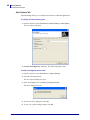
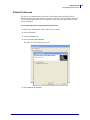
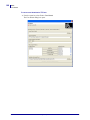
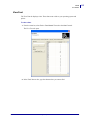
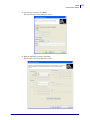
3. In the Printer Display Options area, select the desired printer display option.
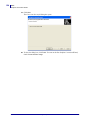
4. When you are finished, click OK.
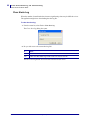
Printer Resolving
ZebraNet Bridge can resolve printers by IP Address or by Host Name. The default setting
resolves printers by IP address.
Note • The recommended method is Resolve by IP Address unless it is not supported by your
network.
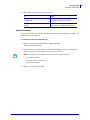
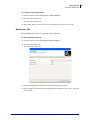
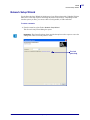
To change printer resolving:
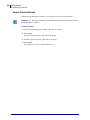
1. From the menu bar, select Preferences > System Settings.
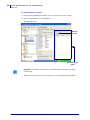
2. Select the Printer Options tab.
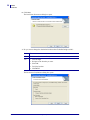
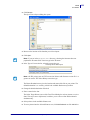
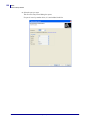
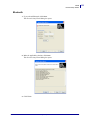
The Printer Options tab opens.
3. In the Printer Resolving area, select the desired printer resolve option.
4. Click OK.
Discovery Options Tab
Your network topography affects the printer discovery process. You can optimize discovery
options for your networked Zebra printers. Three adjustments ensure detection of Zebra
printers on your network. ZebraNet Bridge allows you to change:
• Time-out intervals
• Retries for printer discovery
• Heartbeat retries
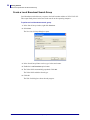
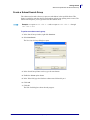
To change discovery options:
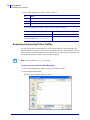
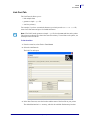
1. From the menu bar, select Preferences > System Settings.
2. Select the Discovery Options tab.
6/5/08
ZebraNet Bridge Enterprise User Guide
13743L-003 Rev. A
43