1
Importing a Data Definition SQL Script
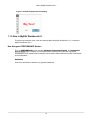
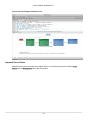
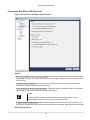
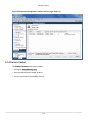
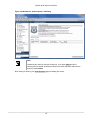
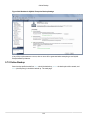
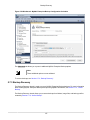
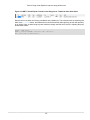
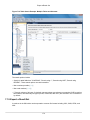
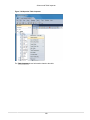
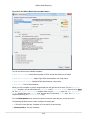
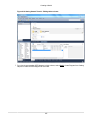
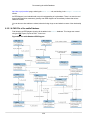
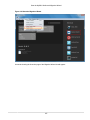
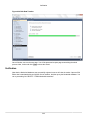
Experiment with the other tools on the vertical toolbar. Delete a relationship by selecting the eraser tool
and clicking the line joining two tables. Create a view, add a text object, or add a layer.
Save your changes to a MySQL Workbench Models file (mwb extension) by choosing Save from the File
menu or by using the keyboard command Control+S.
8.3.3 Importing a Data Definition SQL Script
For this tutorial, use the sakila database script, which you can find by visiting the http://dev.mysql.com/
doc/ page, selecting the Other Docs tab, and looking in the Example Databases section
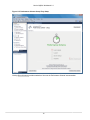
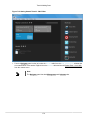
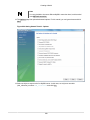
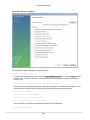
After downloading the file, extract it to a convenient location. Open MySQL Workbench and find the
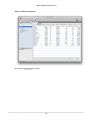
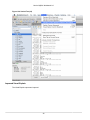
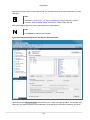
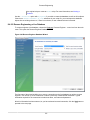
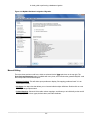
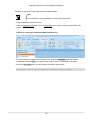
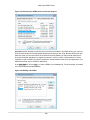
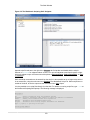
Reverse Engineer MySQL Create Script menu item by first choosing File and then Import. Find and
import the sakila-schema.sql file. This is the script that contains the data definition statements for the
sakila database. The file filter for the file open dialog window defaults to *.sql so you should be able to
view only files with the sql extension.
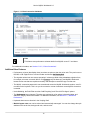
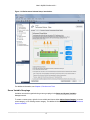
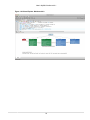
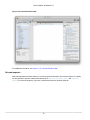
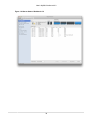
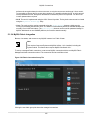
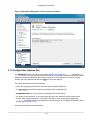
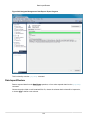
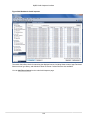
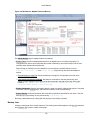
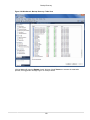
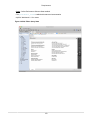
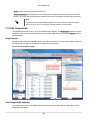
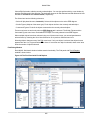
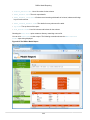
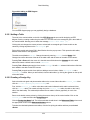
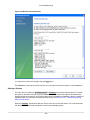
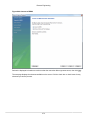
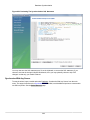
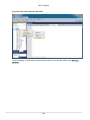
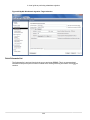
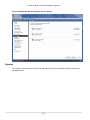
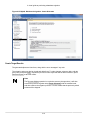
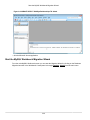
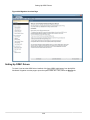
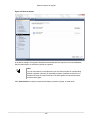
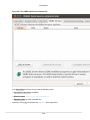
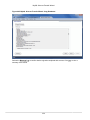
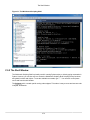
If the file was successfully imported, the application's status bar reads, Import MySQL Create Script
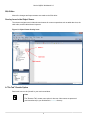
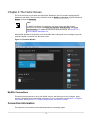
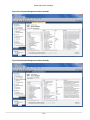
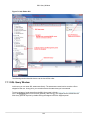
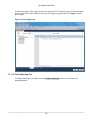
done. To view the newly imported script, expand the Physical Schemata section by double-clicking the
arrow on the left of the Physical Schemata title bar. Select the tab labeled sakila.
You may also wish to remove the default schema tab, mydb. Select this tab, then click the - button on the
upper right in the Physical Schemata panel.
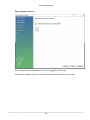
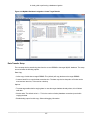
To view all the objects in the sakila schema, you may need to expand the Physical Schemata window.
Move the mouse pointer anywhere over the gray area that defines the lower edge of the Physical
Schemata window. Hold down the right mouse button and move the mouse to adjust the size of the
window.
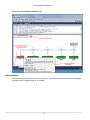
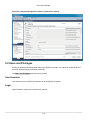
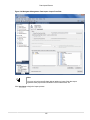
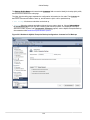
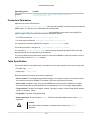
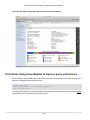
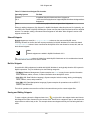
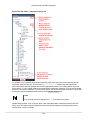
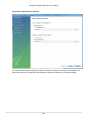
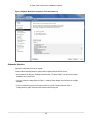
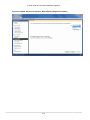
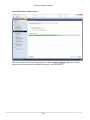
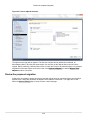
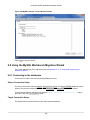
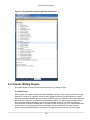
After you have expanded the window, all the objects in the sakila database should be visible. Tables
appear at the top followed by views and then routines. There are no routine groups in this schema, but you
should see the Routine Groups section and an Add Group icon.
For a complete description of importing a MySQL create script, see Section 8.4.2.1, “Reverse Engineering
Using a Create Script”.
8.3.3.1 Adding an EER Diagram
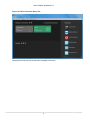
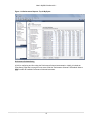
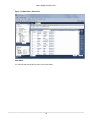
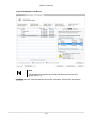
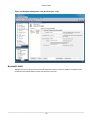
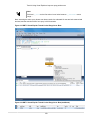
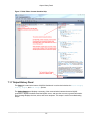
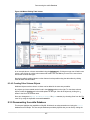
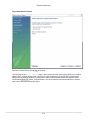
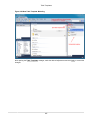
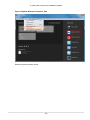
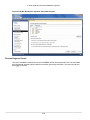
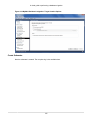
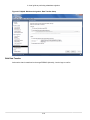
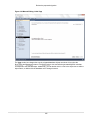
To create an EER diagram for the sakila database, first add an EER diagram by double-clicking the Add
Diagram icon in the EER Diagrams panel to create and open a new EER Diagram editor.
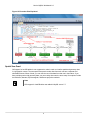
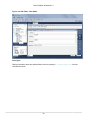
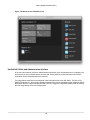
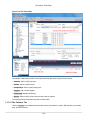
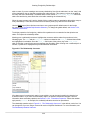
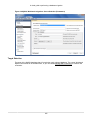
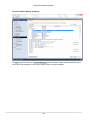
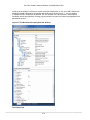
The EER Diagram canvas is where object modeling takes place. To add a table to the canvas, select the
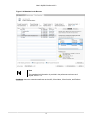
Catalog tab in the middle panel on the right side of the application to display any schemata that appear
in the MySQL Model tab. Find the sakila schema and expand the view of its objects by clicking the +
button to the left of the schema name. Expand the tables list in the same way.
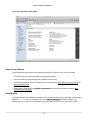
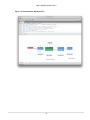
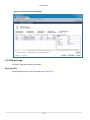
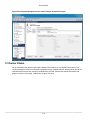
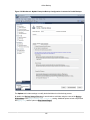
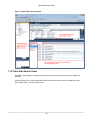
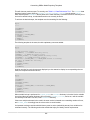
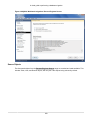
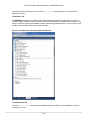
You can add tables to the EER canvas by dragging them from the Catalog panel dropping them onto the
canvas. Drop the address table and the city table onto the canvas.
253