1
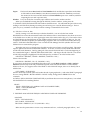
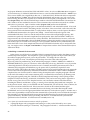
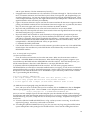
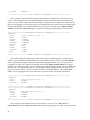
your current Edit window remains open. Load Another gives you a file dialog box to choose
any other POP file for which you want a new Result window opened. Both Load functions are
useful if you want to see the results of a previous run of this or another POP file before
resuming editing.
Window
is the list of currently open windows, as described for the main menu (section 4.1.1).
Help
gives a list of Help files available. There is one for each paragraph type as well as some
additional topics (Raw History formats used with Create; Analysis Numbers used with
Analysis and Simulate, etc.). Choosing Help opens a Help window, as described in the next
section.
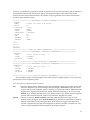
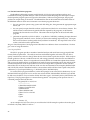
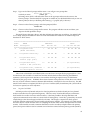
(b) Browse the .POP file in the Edit window.
Return to the tour by making sure the C:\POPAN5\TEST\TESTANAL.POP Edit window is active
(choose it from the Window list if you accidentally opened any other window while browsing the menus).
Scroll down through the window. Read the comment lines that begin with a C in the first position. Note
that each paragraph begins with a paragraph name that ends with a colon: (e.g. SELECT:) and that this is
then followed by several statements of the form Keyword = Keyword_Value ; and that the paragraph is
terminated by a / right after the last Keyword statement. Other rules for POPAN task syntax are given
below (section 4.3). In this case, the first paragraph is a SELECT to point to an existing binary file
(BURN24.BIN) in the Test Suite, followed by two ANALYSIS paragraphs to fit two different models to these
data. To get a fuller understanding of what these paragraphs do, we will open and browse the ANALYSIS
Help file.
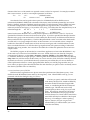
(c) Use the Help files.
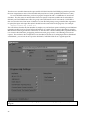
Click on the Help menu and drag down until Analysis is highlighted. Release the mouse and a window
with the title Help Analysis opens. You may have to reposition and widen the window to see a full line.
Helpfile lines are less than 80 characters wide. Read through the Help file. It begins with a paragraph
explaining the scope and purpose of Analysis. This is followed by a Task Definition section that begins by
explaining any special features of the keywords. The section numbers (e.g. 5.1.3) refer to sections in the full
manual (AS&B) from which this material is extracted. The task definition section then gives a detailed
description of each keyword (in the order they appear on the Template). Scroll through this section, reading
a few of them, until you come to the Examples section. The examples listed in Help are the same as those in
the Test Suite. Now we will look at what the Help window menus do:
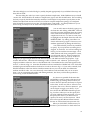
4.2.2 Help Window menu choices
File
This has 2 submenu items. Copy lets you copy any currently highlighted text to the clipboard
for later pasting into an Edit Window. A Help Window is read-only (you can’t make changes
to it), but Copy lets you extract parts of the Window for use in building a command file. For
example, you could copy a paragraph from one of the Examples at the end of a Help file, or you
could copy a Keyword=Keyword_Value line form the Task Definition section (although these
would usually need some editing after the paste to select the desired Keyword_Value). Close
closes the Help window and re-activates the Edit window from which Help was called.
Window
is the list of currently open windows, as described for the main menu (section 4.1.1). You can
have several Help windows open at once by returning to the Edit window and choosing Help
again. You can also switch back to the Edit window by clicking on any portion of the window
which is visible.
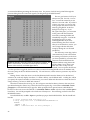
(d) Run the commands in the current Edit Window and browse the Results.
Now close the Help window and return to the Edit Window. If you have been following the tour
exactly, this should be the only window open (check the Window menu) and its title should be
19