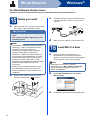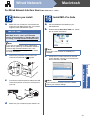
1
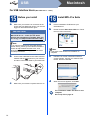
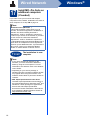
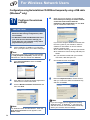
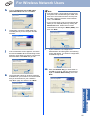
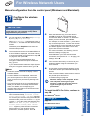
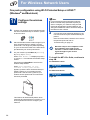
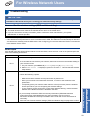
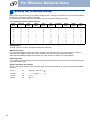
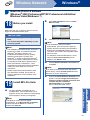
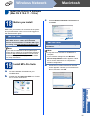
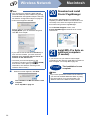
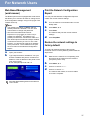
Wired Network Note • If the installation does not continue automatically, open the top menu again by ejecting and then reinserting the CD-ROM or double-click the start.exe program from the root folder, and continue from step b to install MFL-Pro Suite. • For Windows Vista® and Windows® 7 users, when the User Account Control screen appears, click Allow or Yes. • If you want to install the PS driver (BR-Script3 printer driver), choose Custom Install and then follow the on-screen instructions. d When the Firewall/AntiVirus detected screen appears, choose Change the Firewall port settings to enable network connection and continue with the installation. (Recommended) and click Next. (Not for Windows® 2000 users) • For Windows Vista® and Windows® 7 users, when the Windows Security screen appears, select the check box and click Install to complete the installation correctly. • If an error message appears during the software installation, run the Installation Diagnostics located in Start/All Programs/Brother/MFC-XXXX LAN (where MFC-XXXX is your model name). IMPORTANT DO NOT cancel any of the screens during the installation. It may take a few seconds for all screens to appear. 17 Macintosh Follow the on-screen instructions to complete setup. • You can find your machine’s IP address and the node name by printing out the Network Configuration Report. See Print the Network Configuration Report on page 37. Windows® e Note • If your machine is not found over the network, confirm your settings by following the on-screen instructions. Wired Network If you are not using the Windows® Firewall, see the user's guide of your firewall or antivirus software for information on how to add the following network ports. For network scanning, add UDP port 54925. For network PC-Fax receiving, add UDP port 54926. If you still have trouble with your network connection, add UDP port 137. Windows®