1
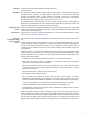
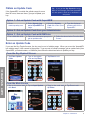
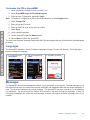
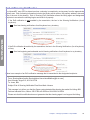
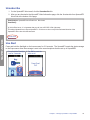
Identify a Keyholder by Serial Number
1.Click Identify
Keyholder.
2.Enter the key serial
number.
3. Click Find.
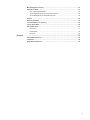
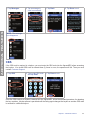
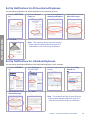
Manage Keybox Inventory
2.Click the Keyboxes
link.
SUPRAWEB
1.Click LISTINGS.
3. Click a keybox
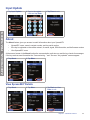
Manage the keybox
information.
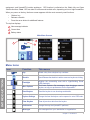
To add a keybox, click
the Add Keybox link,
enter the keybox serial
number, shackle code,
and MLS number where
the box is located.
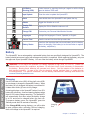
To assign a listing to a
keybox already in your
inventory, select the
Assign Listing dropdown,
choose the keybox, and
enter the MLS number
where the keybox is
located and click Assign.
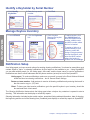
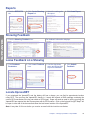
Notification Setup
As a listing agent you have several options for sending showing notifications. Your board or association must
contact Supra to “opt-in” to showing notifications for this feature to be available to you. Using SupraWEB,
you can add multiple people (i.e. the listing agent, office staff, and the home owner) to receive notifications.
Notifications are sent to email addresses and cell phone numbers (as text) but not to the XpressKEY.
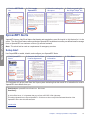
Listing agent - To receive notifications, make sure your email is correct in the Email Address field and
check the Send me showing notifications... box in General Email Settings.
Partner or team member - Add partners to receive all showing notifications by entering their email in
the Also send a copy to: (CC) field.
Client - To have your client receive notifications, go to the specific keybox in your inventory, check the
box and enter their clients email.
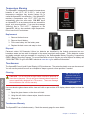
The Showing Notification feature alerts the listing agent when a keybox key container is opened to start a
showing. This information can be display on all activity reports.
Showing information includes keybox serial number, associated listing address/information, date of showing,
the beginning and the end of the showing time (if enabled), and displays on all activity reports in SupraWEB.
Chapter 5 Manage XpressKEY in SupraWEB
27