1
Manufacturer’s Warranty Information
Troubleshooting - Continued
This product comes with a 12 month manufacturer’s warranty. The warranty
will provide an automatic replacement of a product by return mail in the event
of a fault preventing the use of the product. Replacement will be made at no
cost to you.
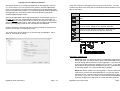
Assigning a Com Port using Windows®
Provision of a replacement product is conditional upon the return of the complete faulty product.
Control Panel – System – Device Manager – Ports (Com and LPT) .
FTA will not replace the product if the fault:
•
•
•
•
•
•
•
•
•
Is caused by failure to follow the user’s instructions or neglect.
Is caused by deliberate or accidental damage.
Is caused by depleted rechargeable batteries.
Relates to failure to read a faulty or damaged driver card or Vehicle
Unit.
Relates to cosmetic damage that does not affect the correct output of
the device.
Relates to failure of peripherals and accessories (e.g. PC connector).
Relates to the failure to correctly install the packaged software on your
PC or laptop.
Cannot be found when inspected – in which case the product will be
returned to you.
FTA is not liable for any loss suffered as a result of not being able to
use the product, or consequential loss of any kind. FTA’s liability is
limited to the replacement cost of the product.
Technical Support
Operating systems vary slightly however you can generally find the Com Port
settings under the following Windows® menu headings;
Double click the ‘Ports (Com and LPT)’ entry in the list and this will list your
devices.
You should be able to identify one of the devices as being your ‘USB Serial
Port (Com #)’ .
RIGHT- CLICK the appropriate device and choose PROPERTIES. Select the
PORT SETTINGS tab at the top of the pop up window. Now click on the
ADVANCED settings button.
You should find a drop down box identifying the current port assigned to your
‘USB Serial Port’. You need to change this to an available port.
Once you have changed the port click OK – OK – and finally close the Device
Manager window and the Control Panel window. Repeat each of the steps in
‘PC Connectivity Troubleshooting’ on page 22
Digifobpro - complete reset
If your Digifobpro stops responding completely it is possible to reset the
device by holding down the Return button for 5 seconds. Do not use this
option as a regular feature especially if a firmware upgrade is in process as it
is equivalent to removing the power from the battery momentarily.
If a fault occurs, please check first that the rechargeable battery is not depleted. If the fault persists or you have any problems with using the device
please contact our Technical Helpline on 0871 474 4874 or e-mail IThelpdesk@fta.co.uk.
Digifobpro User Instructions
Page - 23