1
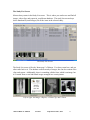
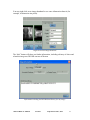
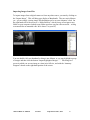
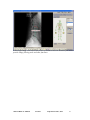
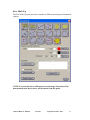
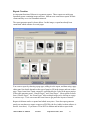
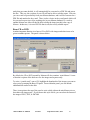
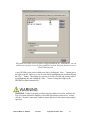
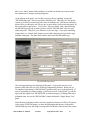
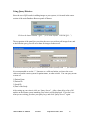
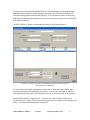
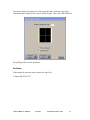
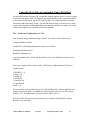
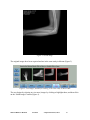
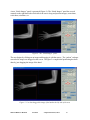
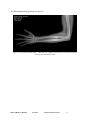
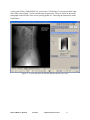
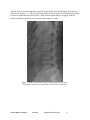
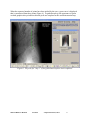
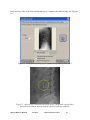
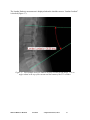
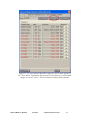
A new “Stitch Images” panel is presented (Figure 4). The “Stitch Images” panel has several
controls on the right hand side which allow the user to drag and position images, rotate them,
scale them, trim them, etc.
Figure 4: The “Stitch Images” panel.
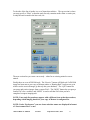
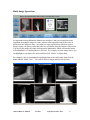
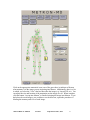
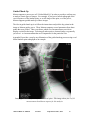
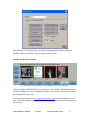
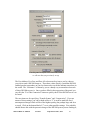
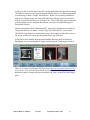
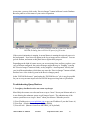
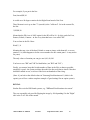
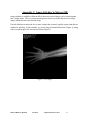
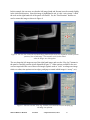
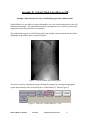
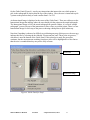
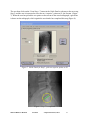
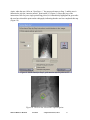
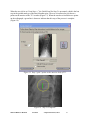
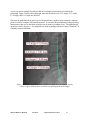
The user begins by clicking on an image and dragging it with the mouse. The “palette” enlarges
as needed as images are dragged on the screen. In Figure 5 a rough initial positioning has been
done by just dragging the image of the hand.
Figure 5: User has dragged the image of the hand to the left side of the area.
Metron-MD User Manual
Version 6
© EponaTech LLC, 2011
69