1
CD-ROM drive problems
You cannot access a CD in the drive.
Make sure the CD-ROM tray has closed properly. Press gently until it clicks into
place.
Open the CD-ROM tray and remove the CD. Make sure the CDROM tray is clean.
Any dirt or foreign object can interfere with the laser beam.
Examine the CD to see whether it is dirty. If necessary, wipe it with a soft clean cloth
dipped in water or a neutral cleaner.
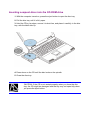
Replace the CD in the drawer. Make sure it is laying flat, label side uppermost. Press
down until the CD-ROM disc locks on the spindle. Close the CD-ROM tray carefully,
making sure it has shut completely.
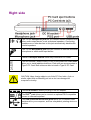
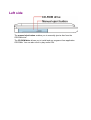
You press the CD-ROM eject button, but the CD-ROM tray does not slide out.
Make sure the computer is connected to a power source and turned on. The
CD-ROM drive eject mechanism requires power to operate.
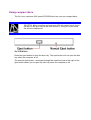
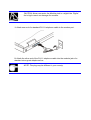
If you need to remove a CD and cannot turn on the computer, use a narrow object,
such as a straightened paper clip, to press the manual eject button. This button is in
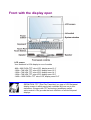
the small hole next to the CD-ROM eject button on the right side of the computer.
Some CDs run correctly, but others do not.
If the problem is with a data CD, refer to the software's documentation and check
that the hardware configuration meets the program's needs.
The color of the materials used to make the CD can affect its reliability.
Silver-colored CDs are the most reliable, followed by gold-colored CD.
Green-colored CDs are the least reliable.