1
2. Integrating with Subversion
Subversion (also known as SVN) is a Software Configuration Management (SCM) system, that enables
users to work on code simultaneously while preserving previous versions by avoiding collisions in code
edits. While users working on the code will usually have a complete copy of the repository on their local
systems, this plug-in will access the repository remotely by use of the “svn://” , “http://” and
“https://” protocols. (Note that “svn+ssh://” may be supported on a server by server basis.)
Due to the methodologies in which IIS handles web requests and runs on the server, any SSH connection
certificates that have trust issues will be automatically accepted. Therefore, we recommend using an IP
address to connect to the server instead of a DNS name that could be redirected to an unsafe
connection.
The current version of the Subversion plugin requires SpiraPlan or SpiraTeam v4.2.0.2 or later.
2.1. Installing the Subversion Plug-In
To install the Subversion Version Control plug-in, follow these steps:
•
Copy the following files into place on your Web Server’s SpiraTeam installation:
o
Copy the file “SubversionProvider.dll” file into the “VersionControl” sub-folder of the
SpiraTeam installation.
o
If your server operating system is 64-bit, then copy all the files in the “x64” directory of
the downloaded plug-in zip file into the “VersionControl” sub-folder of the SpiraTeam
installation. Note: Do not create an x64 folder under VersionControl, make sure the files
live in the VersionControl folder itself.
o
If your server operating system is 32-bit, then copy all the files in the “x32” directory of
the downloaded plug-in zip file into the “VersionControl” sub-folder of the SpiraTeam
installation. Note: Do not create an x32 folder under VersionControl, make sure the files
live in the VersionControl folder itself.
•
Log in as the Administrator and go into SpiraTeam main Administration page and click on the
“Version Control” link under System.
•
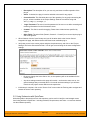
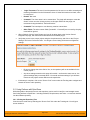
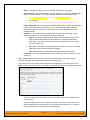
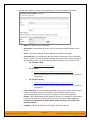
Click the “Add” button to enter the Plug-in details page. The fields required are as follows:
o
Name: The name must be “SubversionProvider”.
© Copyright 2006-2014, Inflectra Corporation
Page 2 of 3
This document contains Inflectra proprietary information