1
Maximizing Performance by Adjusting Real-Time Playback Quality
After you have captured to an Apple ProRes codec or transcoded from another format to an Apple ProRes codec,
you can take advantage of the exceptional real-time playback performance of Apple ProRes files. With RT
Extreme, you can set a project’s sequence for real-time playback at different levels of video quality.
At high-quality, real-time playback settings, Final Cut Pro displays video and effects at full resolution.
Medium-quality playback shows video at half its full dimensions, to reserve processor power for more video
streams and effects. The Apple ProRes format has been engineered not only for excellent decoding speed at
full-resolution playback, but moreover to provide exceptionally fast speed at half resolution. This latter mode
provides tremendous value for practical editing productivity.
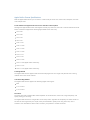
To adjust real-time video playback quality to medium quality
1. Make sure a sequence is open in the Timeline.
2. In the RT pop-up menu, choose Medium in the Playback Video Quality section.
Note: Additionally, if you are working with native file formats with very large frame sizes, choose Unlimited RT
from the RT pop-up menu. For more information, see the Final Cut Pro 7 User Manual.
Copyright © 2009 Apple Inc. All rights reserved.