1
Magnetic Stripe Reader & Writer
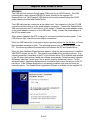
The New Found Hardware Wizard appears a second time to install a second driver.
Repeat the same process again to install the second driver. When both drivers are
installed, the process is complete. The USB communication interface is ready for operation
when the “Found New Hardware” bubble appears with the following notice.
Using the Application Software
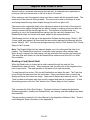
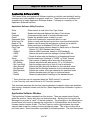
In the “Programs” tab of the Windows START button, double click the “Reader Writer
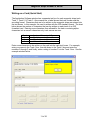
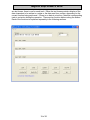
Software Utility v2.4G” to RUN the application. The Password Dialog Box appears the first
time the installed application is RUN. Select a password, confirm it, and click OK. Each
subsequent time the Application Software is RUN, a dialog box (shown below) opens to
request the password. The password is required each time the application is RUN.
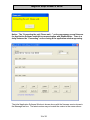
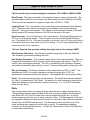
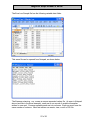
The Application Software checks the communication link with the Reader/Writer both
before the password window and after. During this process, the “Connecting the unit”
window is displayed. The Application Software window appears when the communication
link is verified. If there is an error, check the Reader/Writer LED for a Green (power on)
condition and verify the communication connections.
9 of 36