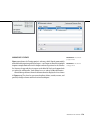
1
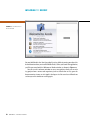
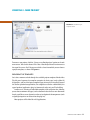
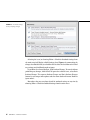
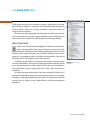
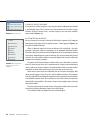
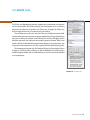
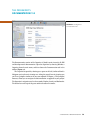
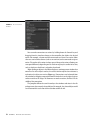
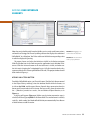
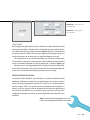
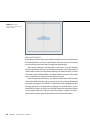
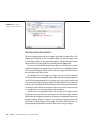
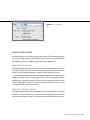
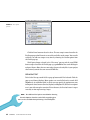
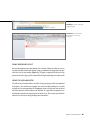
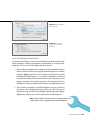
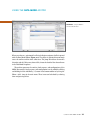
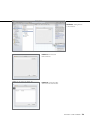
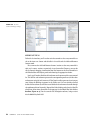
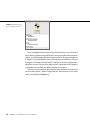
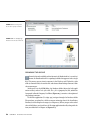
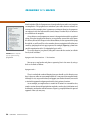
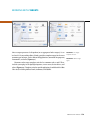
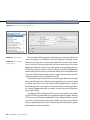
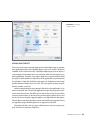
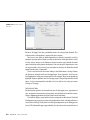
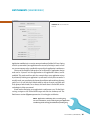
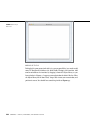
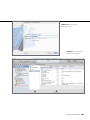
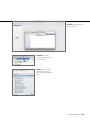
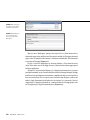
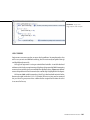
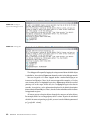
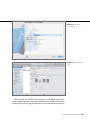
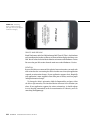
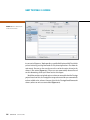
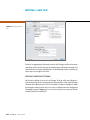
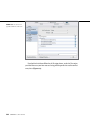
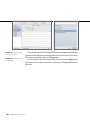
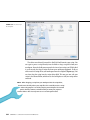
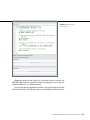
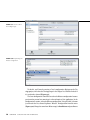
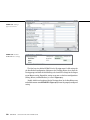
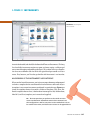
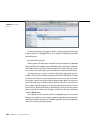
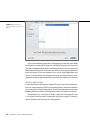
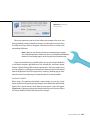
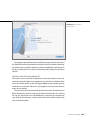
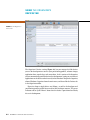
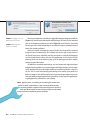
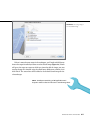
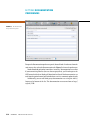
fiGURe 21 .10 Specifying a
remote repository location
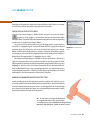
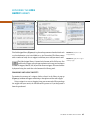
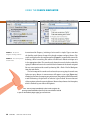
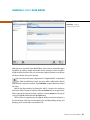
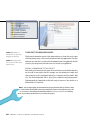
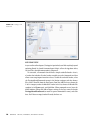
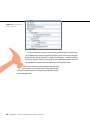
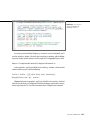
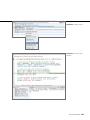
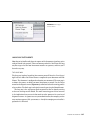
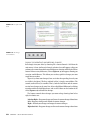
To add a Git clone (or a Subversion working copy), you can either drag it into
the source list in the Repositories tab of the Organizer or again use the Add (+)
button, selecting Add Working Copy from the menu instead. This time you’ll be
faced with a standard Open dialog that allows you to choose the folder containing
the working copy or clone. Once you choose the folder, the working copy (and its
associated repository entry) should be added to the Organizer.
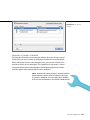
Note: for Subversion repositories, the branches and tags folders must exist
at the root level of the repository you added in order for Xcode to recognize
them automatically. There is currently no way to “map” the corresponding
entries in the Organizer list to folders that are not in this expected location.
ClonIng and CHeCkIng out
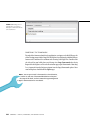
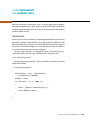
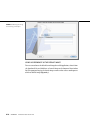
If you don’t already have a local clone, Xcode offers several ways to create one from
within its UI. One way is to use the Organizer’s Add (+) button. Another way is to
use the Welcome to Xcode window (Command+Shift+1) by selecting the Connect
to a Repository option. Figure 21.10 shows a Git repository called GitTestApp that
is hosted on a remote server via ssh. The indicator beneath the Location field shows
that the host is reachable and the location is valid.
usIng an sCm system
361