1
Chapter 14
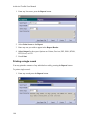
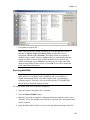
2. Select the functional area record as the Report. For example, to print a name
record, select namesRecord as the Report.
Note: The functional area record report will print out the entire contents of
the open record, but you are not limited to this option for outputting data
from a single record. You can select any report to be printed from a single
record, by selecting the desired output from the Report list.
4. Enter any text you wish to appear in the Report Header.
5. Select Output for the report. Options are: Printer, Preview, PDF, XML, HTML,
RTF, Excel, or CSV.
6. Press Print or Save.
Printing multiple records
Overview
Any of the reports can be generated for a record set of more than one record. To print a
formatted report containing data from multiple records, you must first create the list of
records you wish to be output into the report. You can do this by using the List All button
to generate a report of all records of a given type. Or, you can generate a report for a
subset of records by using the filter or search options to create a subset. For example, you
could use the search tool to generate a list of accession records where the accession date
is between January 1, 2006 and December 31, 2006 in order to generate a report
calculating the year's acquisitions.
The list screen and query editor can be customized using the configuration tools if
necessary to provide the desired search and sort options. See Chapter 16 for
customization instructions.
Filtering records
The filter allows you to quickly generate a subset of records directly in the four primary
list screens. The text you type into the filter box will be used to match text found
anywhere within the fields included in the list. It will not query fields not displayed in the
list. It will retrieve all occurrences of the text string, however. For example, typing in the
string "alum" would retrieve records beginning with the term "Alumni" as well as the
record "Distinguished Alumni Achievement."
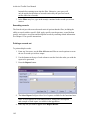
To create a subset of records using the filter:
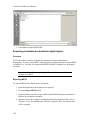
1. Select the functional area containing the records you wish to view.
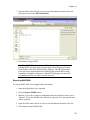
2. Press List All to generate a complete records list.
Note: If you have previously run a query with the search tool or run a
filter, you must delete any text in the Filter box and press the List All
181