1
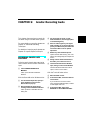
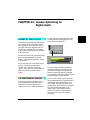
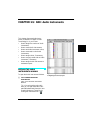
CHAPTER 21: Advanced Recording Techniques
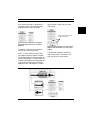
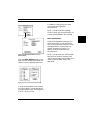
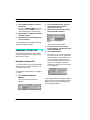
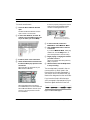
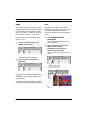
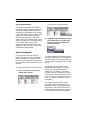
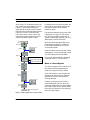
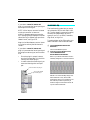
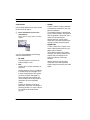
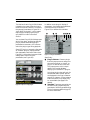
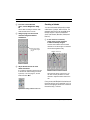
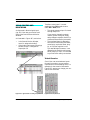
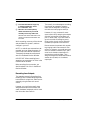
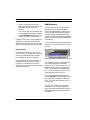
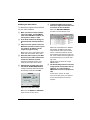
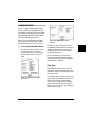
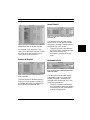
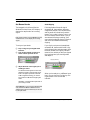
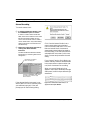
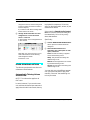
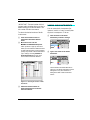
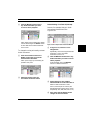
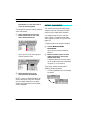
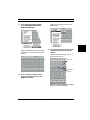
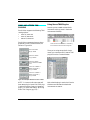
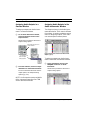
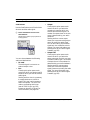
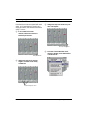
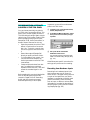
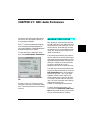
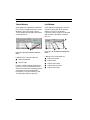
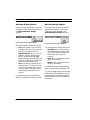
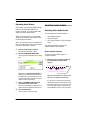
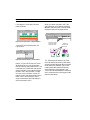
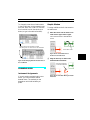
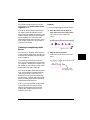
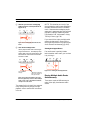
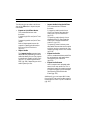
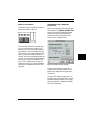
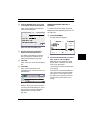
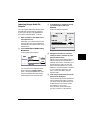
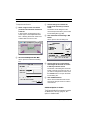
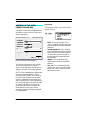
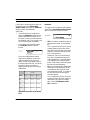
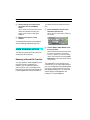
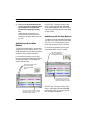
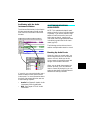
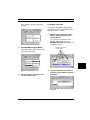
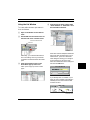
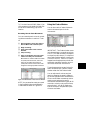
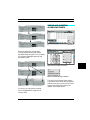
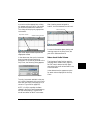
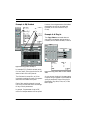
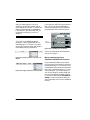
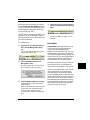
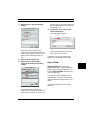
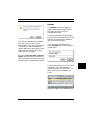
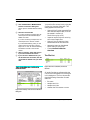
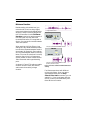
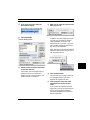
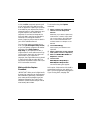
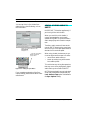
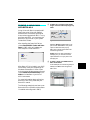
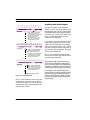
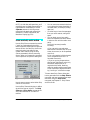
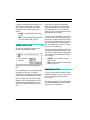
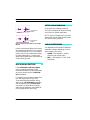
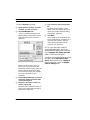
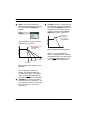
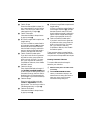
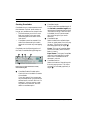
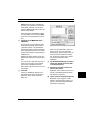
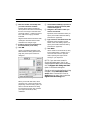
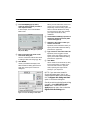
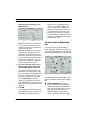
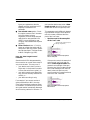
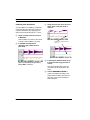
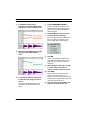
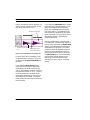
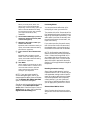
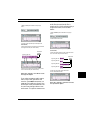
1. With the All option selected in the pop-up
menu...
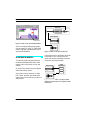
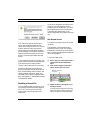
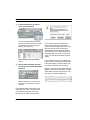
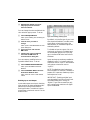
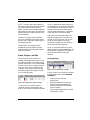
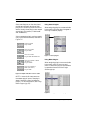
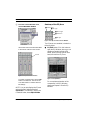
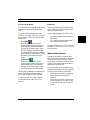
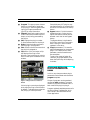
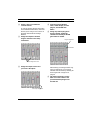
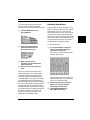
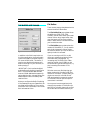
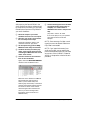
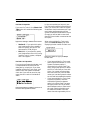
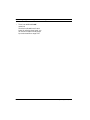
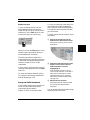
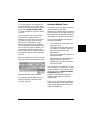
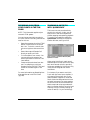
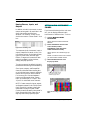
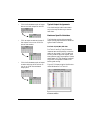
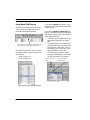
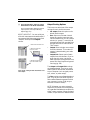
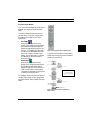
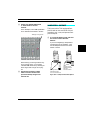
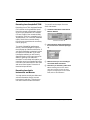
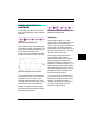
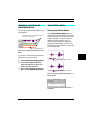
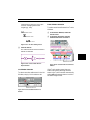
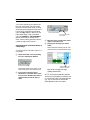
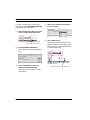
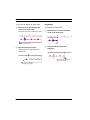
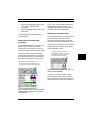
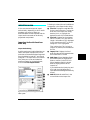
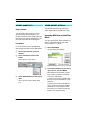
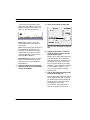
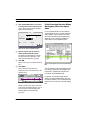
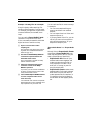
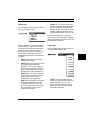
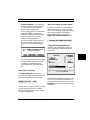
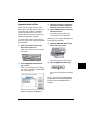
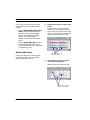
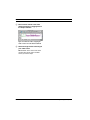
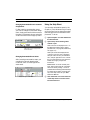
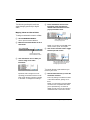
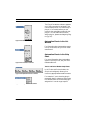
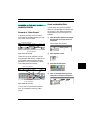
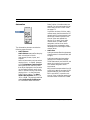
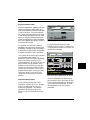
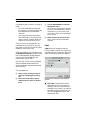
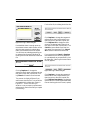
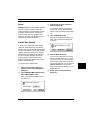
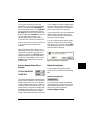
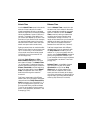
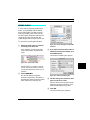
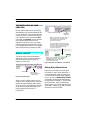
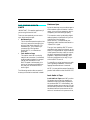
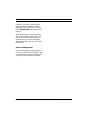
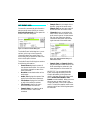
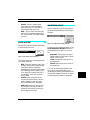
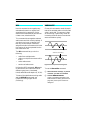
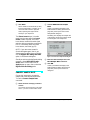
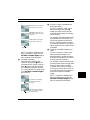
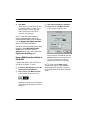
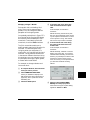
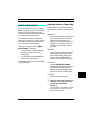
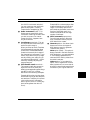
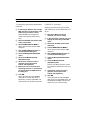
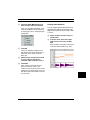
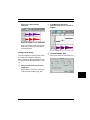
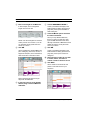
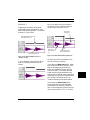
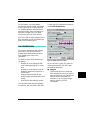
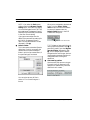
1. With the Each option selected in the pop-up
menu...
2. Record several takes in the same track.
2. Record several takes.
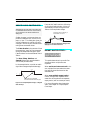
3. All recorded events are written to the hard drive
as a single audio Þle (as shown below).
3. Each recorded event is written to the hard drive
as its own audio Þle (as shown below).
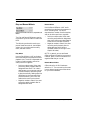
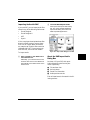
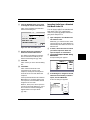
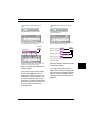
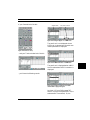
Hard Drive
My Song_Audio-1-001
My Song-001
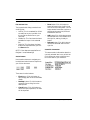
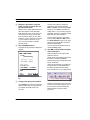
Hard Drive
My Song_Audio-1-002
My Song_Audio-1-003
My Song_Audio-1-004
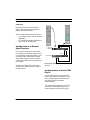
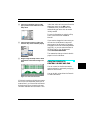
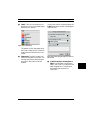
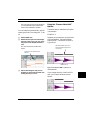
4. And each new audio event references its own
individual audio Þle.
4. And each new audio event references a portion
of this new audio Þle (as shown above).
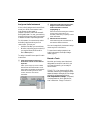
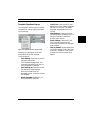
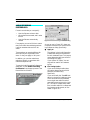
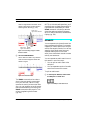
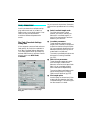
Figure 21.3: Using the “Save All new takes in
a single file” Option
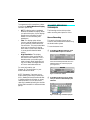
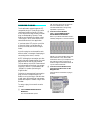
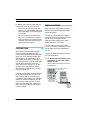
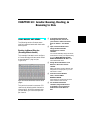
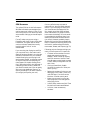
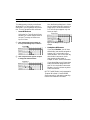
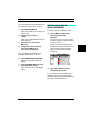
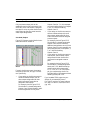
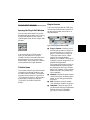
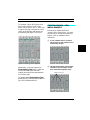
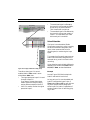
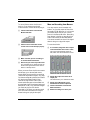
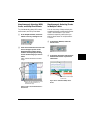
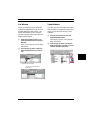
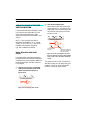
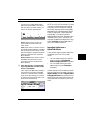
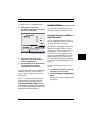
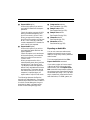
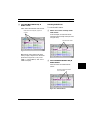
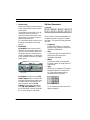
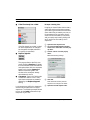
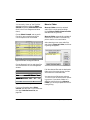
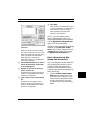
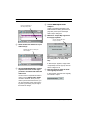
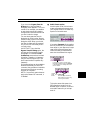
If you record numerous audio takes
with the “Save each new take in a
separate file” preference, then Vision
writes each of the recorded take into
its own file and assigns them a new
audio event. This option creates more
audio files, but each audio file is referenced by a single audio event, as
illustrated below:
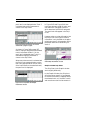
Figure 21.4: Using the “Save Each new event
in a separate file” Option
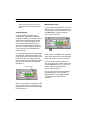
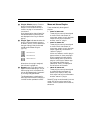
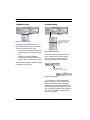
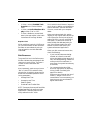
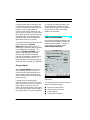
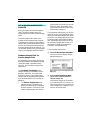
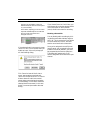
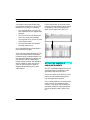
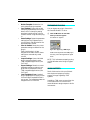
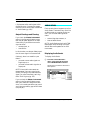
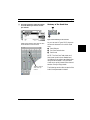
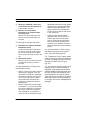
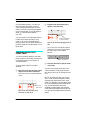
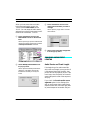
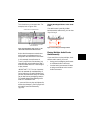
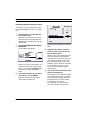
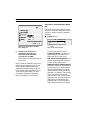
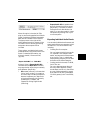
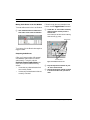
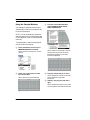
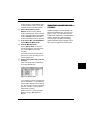
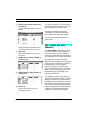
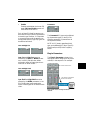
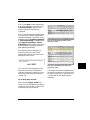
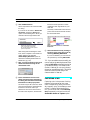
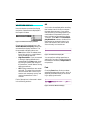
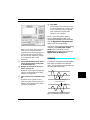
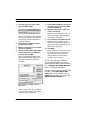
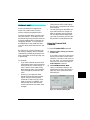
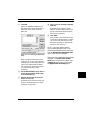
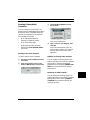
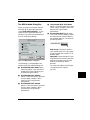
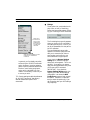
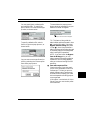
If you type a name other than the
default, that name will be used only for
the first recording. Subsequent files will
return to using the automatic names
discussed in Auto Naming Options on
page 242.
Vision & Studio Vision Pro — Audio Reference Manual
241