1
Basic Features
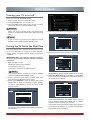
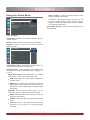
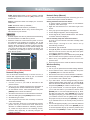
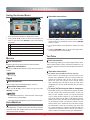
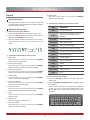
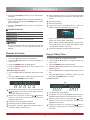
To Use the Menu
1 Press the [MENU] button to open the main menu.
2 Press [▲/ ] to select a menu option, then press [ /
Picture
▲
▲
Picture Mode
Brightness
Contrast
Color
Tint
Sharpness
Advanced Video
Reset Picture Settings
ENTER] button to enter the menu.
3 In each menu, you can:
▲
▲
▲
Press [▲/ ] to select an item,
Press [ / ] to adjust the value, or
Press [ /ENTER] to enter the submenu,
Press [MENU] to back the previous menu.
Energy Savings
▲
50
50
50
0
10
>
>
Personalize the
picture to suit your
preferences and
viewing conditions.
4 Press [EXIT] to exit the menu.
NOTE
The menus in the user manual may vary slightly from the actual screen.
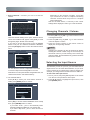
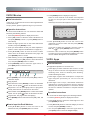
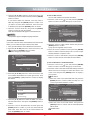
Advanced Video - Access advanced video settings such
as Color Temperature, Noise Reduction, Dynamic Backlight
Control (DCR) and Adaptive Contrast.
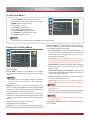
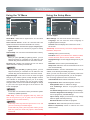
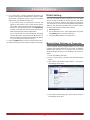
Using the Picture Menu
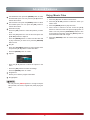
Color Temperature: Change the color temperature. You
can select a preset color temperature: Cool, Normal and
Warm (when set to cool, whites are bluer; when set to
warm, whites are yellower)
Picture
Picture Mode
Brightness
Contrast
Color
Tint
Sharpness
Advanced Video
Reset Picture Settings
Energy Savings
50
50
50
0
10
>
>
Personalize the
picture to suit your
preferences and
viewing conditions.
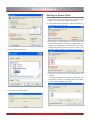
120HZ Effect: Inserts frames to reduce judder in fast
action scenes. You can select High, Low or Off. (May not
be accessible, depend on your TV series and size.)
Noise Reduction: Optimize the picture quality by filtering
signal interference. You can select Off, Low, Auto,
Medium or High.
You can adjust:
Dynamic Backlight Control (DCR): Enhances the
contrast ratio between light and dark areas of the picture.
You can select Off, Low or High.
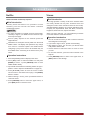
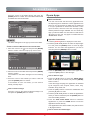
Picture Mode - Adjust the Picture Mode. You can select
Vivid, Standard, Energy Savings, Theater, Custom or Game
mode.
Adaptive Contrast: Automatically adjusts the contrast
level of the selected input source.
NOTE
The option of the Picture Mode is different in different
inputs. (For more information, see “Shortcuts
Instructions”)
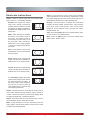
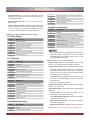
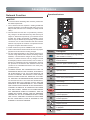
Aspect Ratio: To choose the screen aspect ration from
Normal, Wide, Zoom, Cinema , Auto and 1:1 Pixel Map.
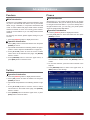
Brightness - Increase or decrease the brightness of the
picture. Increasing the brightness can add more light to dark
areas of the picture, while decreasing the brightness can
add more darkness to light areas of the picture.
The option of the screen Aspect Ration is different in
different inputs.
NOTE
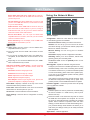
Overscan: In DTV mode, Select ON to extend the image
beyong the display so the picture edges are not visible.
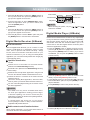
Contrast - Increase or decrease the contrast of the picture.
Increase the contrast to adjust the white areas of the picture
or decrease the contrast to adjust the black areas of the
picture.
NOTE
Only available in DTV, HDMI (Except Game mode) and
Component source.
Color - Adjust the level of color in the picture.
Reset Picture Settings - Resets all Picture settings to the
factory defaults.
Tint - Adjust the hue of the picture.
Sharpness - You can increase the sharpness level for clearer
images or decrease the sharpness level for smoother images.
12