1
Starting Up
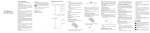
3. Installing the microSD Card
4. Charging the Battery
1. Removing the Back Cover
Powering On/Off Your
Phone
Make sure the battery is charged before
powering on.
Press and hold the Power Key to
turn on your phone.
To turn it off, press and hold the
Power Key to open the options
menu. Touch Power off>OK.
2. Installing the SIM Card
Notes: Some applications may require a
microSD card to work normally or may
store certain data on it. Therefore, it is
recommended that you keep a microSD
card installed and not remove or replace
it randomly.
Notes:
Switch off your phone before
installing or replacing the SIM card.
If you're using a small card, please
buy standardization SIM dedicated
card sets from the formal channels,
and then push the whole into the
slot.
8
9
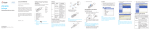
Waking Up Your Phone
1. Press the Power Key to activate
your screen display.
When you first get your new phone you’ll
need to charge the battery like this:
1. Connect the adapter to the charging
jack.
2. Connect the charger to a standard
AC power outlet.
3. Disconnect the charger when the
battery is fully charged.
Notes: If excessive discharge of the
battery, the charging icon will display
delay.
CAUTION: Do not change the built-in
rechargeable battery in your phone by
yourself. The battery can only be
changed by ZTE or ZTE authorized
service provider.
10
2. Drag the
icon to the right to
unlock.
Notes:
If you have set an ‘unlock pattern’, or a
PIN/password for your phone, you’ll
need to draw the pattern or enter the
PIN/password to unlock your screen.
Touch and Hold
To open the available options for an
item (for example, a message or link
in a Web page), touch and hold the
item.
Drag
To drag, press and hold your finger
with some pressure before you start
to move your finger. While dragging,
do not release your finger until you
have reached the target position.
Pinch
In some apps (such as Maps,
Browser, and Gallery), you can zoom
in and out by placing two fingers on
the screen at once and pinching
them together (to zoom out) or
spreading them apart (to zoom in).
How to add contact to
your Contacts
There are some numbers that you may
want to call again and again, so it makes
sense to add these numbers to your
contact list. You can then access these
numbers quickly and easily.
>
1. Press Home Key > tap
Contacts.
2. Tap
> select the place to store
the contact > input the name and
number or other content > Save.
How to make a call
You can make a call from Phone, also
you can make a call from Contacts.
1. Press Home key > tap
Phone.
>
2. Enter Dialer > input the number you
Using the Touch Screen
want to call > tap
Your phone’s touch screen lets you
control actions through a variety of
touch gestures.
Touch
When you want to type using the
onscreen keyboard, select items
onscreen such as application and
settings icons, or press onscreen
buttons, simply touch them with
your finger.
11
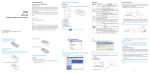
How to answer or reject
a call
1) Non lock screen to answer the call
Tap the
the call
icon to answer
Tap the
icon to reject the
call
2) Lock screen to answer the call
Drag the
icon down to
answer the call.
Drag the
reject the call.
icon down to
During a call
1) Muting a Call
During a call, you can mute your
microphone so that the person you
are speaking to cannot hear you, but
you can still hear him.
Tap
to turn on or off the
speaker.
3) Ending a Call
Tap
13
1. Press Home key > tap
Messaging.
2. Tap
to create a new message.
to
recipient. You can also tap
select recipients from the Contacts.
, input the
4. Tap
message you want to send.
Tap Menu Key to insert common
phrases or contacts.
If you are sending an MMS, tap
Menu Key to add a subject, or
to attach pictures, videos,
tap
audio, or slideshow.
to send your message.
Notes: Add an attachment to text
message and it will be converted into an
MMS automatically. Likewise if you
remove all attachments and the subject
from an MMS, it’ll automatically become
a text message.
to finish a call.
14
>
3. Input the recipient’s number or
name. As you type, matching
contacts will appear. Tap a
suggested contact to add as a
5. Tap
to dial.
Tap
to turn on or off your
microphone.
2) Speaker On/Off
12
How to send a message
15