1
Chapter 13: Putting Your Data on the Map
Displaying your Data on a Map
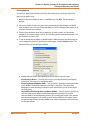
After you open an Access table in MapInfo Professional for the first time, MapInfo Professional
creates a definition for the table and gives it a .TAB extension. This enables you to it treat it like any
other MapInfo Professional table. For example, to open this file you would now open it like any other
MapInfo Professional table.
L
Even though the table has the .TAB extension in MapInfo Professional, your data is still in
your original Access database table and is not a duplicate.
The Help System contains these related topics:
•
•
•
•
•
Microsoft Access Table Specifications
Creating an Access Table in MapInfo Professional
Saving a MapInfo Professional Table as an Access Table
Saving an Access Table as Another Access Table
Limitations of Working Directly with Access Tables
•
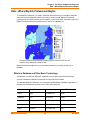
IFor more specific instructions on creating points, see Putting Longitude/Latitude Coordinates on
a Map in the Help System.
Displaying your Comma Delimited Data
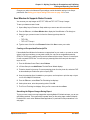
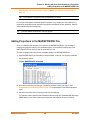
You can create native .tab files for comma delimited data in MapInfo Professional.
Opening Comma Delimited Files in MapInfo Professional
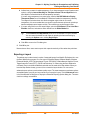
You can export tables to comma delimited .csv text files. You can open .csv files from our File >
Open dialog box as well.
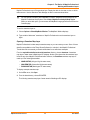
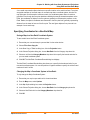
To open a comma delimited file:
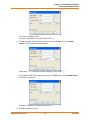
1. From the File menu, click Open to display the Open dialog box.
2. From the Files of type box, select Comma delimited CSV (.csv).
3. Navigate to the folder that contains the file you want to open and click it to select it.
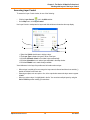
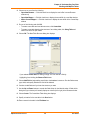
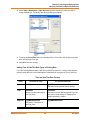
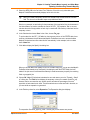
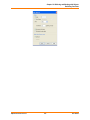
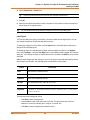
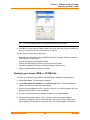
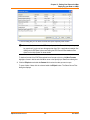
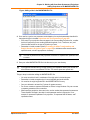
4. Click Open to display the Comma Delimited CSV Information dialog box.
The Delimiter option buttons in this dialog box are disabled intentionally because commas are
the only expected delimiters in this file format.
5. Select the File Character Set for this file from the drop-down list and select the Use First Line
for Column Titles check box if applicable.
6. Click OK to open the file.
Exporting to a Comma Delimited CSV Format
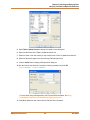
When you export a file to a comma delimited (CSV) format, a Comma Delimited CSV Information
dialog box displays. In this dialog box, you can select a new delimiter, choose the file character set,
and choose to use the first column in the file for column headings. When you have made your
selections, click OK.
MapInfo Professional 10.5
339
User Guide