1
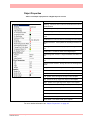
Properties Precedence
Colour
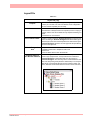
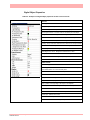
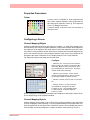
A colour picker is available for those properties that
have colour changes available. Certain properties will
have their colour properties “Fixed” eg. Fix Foreground
Colour, Fix Background Colour.
A manual change to the pen colour will over-write a
fixed pen colour.
Configuring a Screen
Channel Mapping Widgets
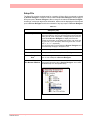
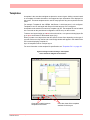
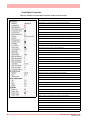
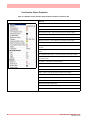
Channel configuration can be done per widget or per object (i.e., either in the widget's properties window or in the object's properties window). Configure the widget if all the objects on
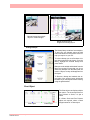
the widget are to be mapped to the same channel. Select the widget and go to the “Channels” section in the properties window. Each object contained in the selected widget will appear in the channels section of the properties window. Each object in the widget can be
assigned to the same or different Pen as a widget, Alarm for Pen or Input Channel.
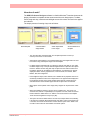
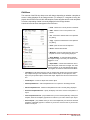
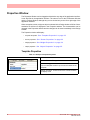
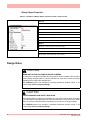
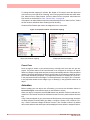
For widgets and objects the setup box looks the same.
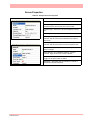
Configure
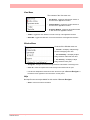
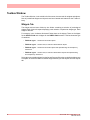
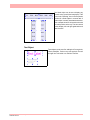
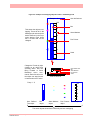
• Data from: Pen - set the pen number what the
object is going to be showing: Current Value, Minimum value, Maximum value, Average pen reading or Total.Data from: Alarm for Pen - set the pen
number and the alarm number(s)
• Data from: Input Channel - set the channel
number and what the object is going to be showing: Analogue, Digital, Hi Pulse or Lo Pulse
• Number: of the Pen, Alarm for Pen or Input Channel
• Showing: For Pen - Current Value, Minimum, Maximum, Average or Total value.
For Alarm for Pen - List of available Alarms
For Input Channel - Analogue, Digital, Hi
Pulse or Lo Pulse.
Screen configuration is assigning each object and/or widget to a channel/pen. Select an object or widget and go to the properties window.
Channel Mapping Objects
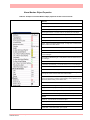
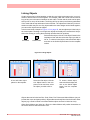
Channel mapping for an object is set up either in the properties window of the object itself
(look for the property called "Showing") or in the properties window of the widget which contains the object (look for the object in the "Channels" section)..This will display which channel that object is currently assigned to, or where the data is coming from eg. Pen No.1.
43-TV-25-36 Iss.5 GLO May 11 UK
A5E01001789-05
55