1
 25
Chapter 3
Translation
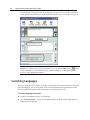
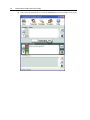
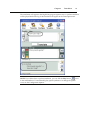
The Interact Translation window allows you to translate words and display the resulting text on the screen. Depending on your configuration options, you can hear a spoken translation and generate a written log of the translated words. You may also be able to change the spoken translation voice to match a particular gender. If you are using Interact to support a running conversation with another person, you can easily tell Interact to switch language directions when you pass the microphone back and forth (if sharing a microphone), or alternate speakers (if using two microphones). In This Chapter
Translating Your Words ................................................................................. 25 Switching Languages ...................................................................................... 28 Voice Commands............................................................................................. 32 Advanced Dictation Tips ................................................................................ 34 Using the Transcription Log .......................................................................... 39 Changing Voice Synthesis .............................................................................. 41 Translating Your Words
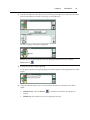
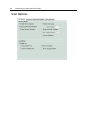
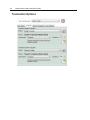
Interact can operate by using voice commands, by clicking buttons, by entering text on the screen, or a combination of these methods. NOTE: The following instructions apply to the default user options. To change the default settings, see User Options (on page 44). To translate with Interact
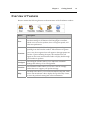
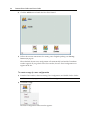
1) Make sure your microphone(s) is plugged in. 2) Make sure you are viewing the Translation window. If you are not, click the Translate button from the Interact main menu.