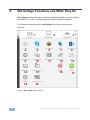
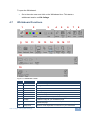
1
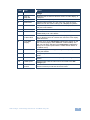
Item
Icon
1
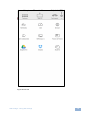
Features
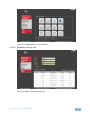
Allows user to see and access all available features of VIA
Collage
Action
2
Whiteboard
Opens a canvas to annotate, draw, and update document
collaboratively over a live stream
3
Participants
Provides a list of all participants in the session
4
Cloud
Open the Cloud and all the files that are saved or shared
between participants
5
Skype
Starts Skype video conferencing tool
6
Go to Meeting
Starts a GoToMeeting session
7
WebEx
Starts a WebEx session
8
Microsoft Lync
Opens Lync client for audio and video conferencing
9
Web Browser
Opens the browser at the VIA Collage gateway to present any
content directly from the Web site
10
Screen Share
Pushes a mirror of the VIA Collage collaboration display on
the user’s devices (laptop, iPAD, MacBook, Android tablet).
The user can see all the activities of the VIA Collage
collaboration display on his system (this feature is called "View
Main Display" in the Client menu)
11
Third Party
Apps
Shows third-party applications installed and integrated with
VIA Collage
12
File Transfer
Shares files between the available participants during the
session
13
Chat
Allows sending chat messages among available participants
during that session
14
HDMI Input 1
Displays/hides the external video source connected to the VIA
Collage input
15
Picture in
Picture
Switches the external video source (HDMI input)between PIP
(Picture-in-Picture) mode and full screen mode
16
Shut Down
Shuts down the VIA Collage system
17
Reboot
Reboots the VIA Collage System
18
Settings
Performs settings on the LAN, configurations related to room
code, room name third-party apps, system controls, wallpaper
streaming configuration and activation center
19
Display Layout
Allows selecting the layout when several participants are
stepped-in (thumbnail view or dynamic view)
VIA Collage - VIA Collage Functions and What They Do
13