1
•
•
•
•
•
•
•
•
•
•
•
•
•
•
•
•
Configuration Wizard: Guides you through the setup process, including all the items below.
Pay Periods: Sets the period of time each paycheck covers (weekly, bi-weekly, semi-monthly, monthly).
Company Profile: Sets up company information.
Overtime: Sets up overtime policies.
Pay Types: Sets up pay types, which are used when you add employees to the system.
Shift Schedules: Sets the schedules for various shifts.
Departments: Sets up department information.
Holiday Schedules: Sets up holiday schedules.
Employee: Adding, modifying and removing employees from the system.
Password: Allows you to change your password or not use a password at all. Note: We strongly suggest
setting a password to something unique to your company after you set up your system.
Auto Lunch Setup: Sets up a function that adds an automatic lunch transaction so employees don’t have
to clock in and out for their lunchtime.
Excess Transactions Setup: Sets the period of time when all but the last in a series of transactions by an
individual employee will be removed. For instance, if an employee clocks out when he or she meant to
clock in, realizes the mistake and clocks in a minute later, the erroneous clock-out will automatically be
removed.
Forced In/Out: Restricts an employee’s ability to clock in or clock out. This feature is commonly used
when the employer wants workers to report to their supervisor when they are late to work.
On Time Setup: Allows you to label transactions as “In early,” “In late,” “Out early,” or “Out late” based
on parameters you set.
Snap-To Setup: Among its functions: allows employees to clock in early but not go “on the clock” until
their scheduled starting time.
Bonus/Penalty Setup: This function allows you to set up systems of bonuses and penalties for time
worked on various days.
Setup menu in detail
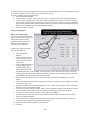
Configuration Wizard
What's the Configuration Wizard?
The Configuration Wizard leads users through the steps necessary to set up their TimePilot system software in a
simple question-and-answer format. While it is designed for first-time users of the system, it can be used at any
time to set up or adjust software settings.
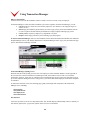
Here's how to run the Wizard:
1.
2.
3.
4.
5.
6.
Make sure the TimePilot software has been installed.
Double-click on the TimePilot icon on your desktop to start the Program Manager.
Click the Configuration Manager button.
You'll be asked for your password to enter the Configuration Manager. If this is the first time you've
used the TimePilot software, you can set your own password. We strongly suggest changing your
password to something unique to your company after you set up your system.
Click "Setup" in the menu bar.
Click "Configuration Wizard" and follow the screen prompts.
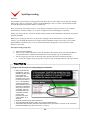
Note the tips for each stage of the setup that appear at the left side of the Wizard. Clicking the “Help” button
on any screen in the wizard will give you even more detailed instructions and tips on how best to answer the
questions.
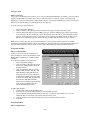
Set up pay periods
What’s a pay period?
A pay period is the period of time over which a company compiles an employee's hours worked for the purpose of
12