1
4.8. Printing appointments
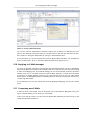
If an individual instance of an appointment series is among the appointments selected for deletion,
you will also be asked whether you want to delete the appointment series as a whole or only
this instance of the appointment series. In order to delete the appointment series as a whole,
click on Series. In order to delete only the selected instance of the appointment series, click
on Appointment. If several instances of an appointment series were selected for deletion, all
selected instances of this appointment series are deleted without any further query.
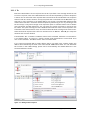
In the List and Calendar view (all time ranges) you can also delete the selected appointments
with the Del key or via the context menu.
Deleting appointments
If you delete an appointment, this automatically triggers an E-Mail notification to all participants informing them immediately of the deleted appointment.
If you want to delete appointments from public or other users' shared calendar folders, you
need delete rights for for the objects of these folders.
If you delete appointments that are linked with other elements, the relevant links are automatically removed from these elements.
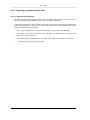
4.8. Printing appointments
In order to print the data of individual appointments or appointment list views in your personal
calendar folders, public or other users' shared calendar folders, you can use one of the methods
described below.
4.8.1. Printing individual appointments
When you print individual appointments, all fields of the appointment containing data are
printed - regardless of the tabs (appointment, participants) in which these fields are managed.
Empty fields are not printed out.
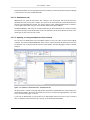
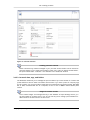
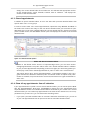
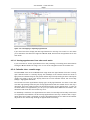
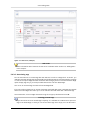
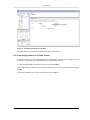
In order to print individual appointments with their data, display the desired appointment in the
Detail view and then click on Print in the Calendar panel section.
Open-Xchange Server opens a new print-optimized window showing the printable data of the
selected appointment. At the same time, the Print window opens, where you can select the
desired output device for printing.
Once you have confirmed your printer selection in the Print window and via OK, the data of
the appointment are printed on the selected device and the window with the print data is automatically closed.
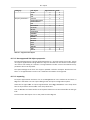
4.8.2. Printing lists of appointments
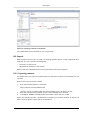
Printing lists of several appointments is only possible from the List view for all time ranges;
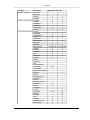
you cannot print from the Calendar and Team views. All fields displayed as columns of the
table in the List view are printed - fields without data are printed as empty fields in the list.
Only selected appointments from a specific calendar folder will be printed.
92
© Copyright Open-Xchange Inc. 2009