1
Setting Up Your Business
Adding Vendors
QuickBooks uses the vendor list to hold information about
the people and companies you buy goods and services from
to run your business. For example, this list could include the
phone company, your office supplies vendor, and your tax
board. You can add new vendors at any time.
Tip: Typing in vendor data for hundreds of vendors
can be a tedious task. If you use Microsoft Outlook,
you can import your existing vendor information into
QuickBooks instead of entering it manually. Refer to
the QuickBooks in-product Help for instructions on
how to prepare your vendor data file for importing into
QuickBooks.
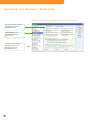
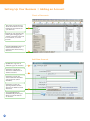
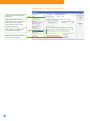
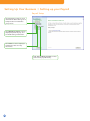
To add a vendor:
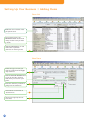
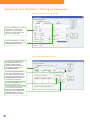
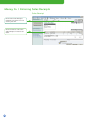
➊ Click the Vendor Center icon at the top of the QuickBooks
window.
➋ Click New Vendor.
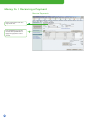
➌ On the Address Info tab, enter all the data that you have
about the vendor, including the vendor’s name, address,
and additional contact information.
➍ If you owe this vendor money as of your company’s start
date, enter the amount in the Opening Balance field.
➎ Click the Additional Info tab and complete the form.
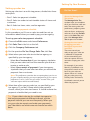
Key Term
Vendors
Vendors are any businesses
or people from whom you
buy or rent goods or services
for your business—office
supplies, phone or computer
services, or products that
you sell. The tax agencies
that you pay are also your
vendors. Nearly everyone
you pay other than
employees are vendors.
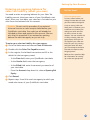
Did You Know?
Adding multiple vendors
at once
If you need to add several
vendors to your QuickBooks
company file, consider using
the Add/edit multiple list
entries feature described
on page 10. For more
information, refer to the
in-product Help.
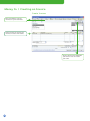
➏ If you want to add additional fields to the form, click
Define Fields to customize the form.
➐ Click OK or click Next if you want to enter another vendor.
Tip: You can also add vendors as you perform your
everyday tasks. For example, if you enter the name of a
new vendor when paying a bill, QuickBooks will prompt
you to enter information about this vendor. You can
choose from two quick setup options.
• Quick Add—Adds just the name to the list. You must
add the details later.
• Set Up—Enables you to enter additional information
(such as a phone number, fax number, and alternate
contact) to the list you choose.
33