1
Page 2
Pro, you also need our GPS Expander. Several optional sensors and accessories are available from Eagle Tree to further enhance your OSD Pro, such as
our barometric altimeter, pitot airspeed sensor, temperature sensors, and many more.
When connected to your eLogger or Data Recorder, the OSD Pro superimposes Eagle Tree data onto your video feed, displaying the parameters you want to
see on the video screen. The OSD Pro is normally connected between the composite video output of your video camera, and the composite video input of
your video transmitter or DVR. The OSD Pro supports NTSC and PAL video modes – the video mode is automatically detected.
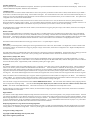
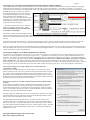
The figure above shows a typical “FPV” onboard setup.
Your wiring may vary depending on your video hardware, power system, etc.
General Safety Precautions
In addition to the warnings and other precautions in this manual, the following precautions should always be observed:
1)
2)
3)
4)
5)
The OSD Pro is intended for recreational use only. You should always use a spotter if your eyes are not on your model. Any use of the OSD
Pro to attempt to navigate your model, operate your model autonomously, or otherwise operate your model outside of Visual Line of Sight (VLS)
is not supported. For USA customers, please refer to the American Model Association’s Safety Code at
http://www.modelaircraft.org/files/105.PDF and FPV related code at http://www.modelaircraft.org/files/550.pdf
Always obey the law when flying. Most video transmitters used for FPV flying require an amateur radio license to operate legally.
If you have never set up or operated an RC model before, you will need help from an experienced modeler. Local RC clubs are great ways to
meet experienced modelers, and receive the required training.
This requirement is especially true for FPV flying, which can be more
challenging.
Never operate your model aircraft near or over buildings, power/telephone lines, or other obstacles. Never operate your model aircraft near or over
other people!
RC models and accessories are not toys, and should be kept away from children, without proper adult supervision.
Steps to Follow
Installation and use of your OSD Pro should be quite easy and enjoyable if you follow these few steps:
1.
2.
3.
4.
5.
6.
7.
First, read through the manuals for your eLogger V4, eLogger V3 or Data Recorder, your GPS Expander, and any other Eagle Tree sensors, to
familiarize yourself with the connection and function of these devices.
Read through this manual to understand the warnings, determine the installation and setup sequence, etc., of the OSD Pro.
If anything is unclear, see the “Have Questions or Feedback?” section below.
Install or upgrade to the Windows Software and Firmware for your OSD Pro and Recorder as described in the “Windows Software and Firmware
Update” section below.
Configure your eLogger V4/V3 or Recorder as described in the manuals for those, if you have not already done so. NOTE: It is strongly
recommended that you set the “Capture Rate” of your eLogger or Recorder to 10 samples/second, for best OSD Pro update rate and performance.
Install and configure the OSD Pro as described below. Note that some features of the OSD Pro are configured with the Windows Software, some
features (ones that may change more often) are configured either with the OSD Pro’s on-screen menus or with the Windows Software. Some
features, such as RTH, and Artificial Horizon Indicator (AHI) calibration, can only be configured using the OSD Pro’s on-screen menus.
Range test and enjoy!
IMPORTANT: It is unlikely that the installation of the OSD Pro will affect your model’s radio range or control. But, as always after making an
electronics change to your model, it is very important that you range and function test your model once the OSD Pro is installed to ensure that there is no
impact on your system. Make sure that your “antenna down” operating range is within the manufacturer’s specifications. See your Radio owner’s manual
for the correct procedure for your equipment. DO NOT OPERATE IF YOUR MODEL DOESN’T PASS THE ANTENNA DOWN RANGE CHECK
Have questions or Feedback?
Eagle Tree is committed to providing great customer service. If you’ve read the manual and something is not clear, just ask.
time to answer your questions, rather than having you waste your valuable time struggling with an issue.
We’d much prefer to take the
To get help, visit the Eagle Tree OSD Pro support thread at http://www.rcgroups.com/forums/showthread.php?t=924018. Chances are someone has posted a
solution to your problem already. If not, posting your problem there will get a very quick response from the Eagle Tree community.
If you prefer to not post on the forum, or you feel there is a problem with your Eagle Tree hardware, please open a support ticket with us at
http://ticket.eagletreesystems.com. We will respond to your support ticket as soon as we can (normally 1-3 business days). Note that you may receive an
answer to your question more quickly from our forum above, since many other Eagle Tree customers also monitor the forum. Note that when you create a
support ticket, you will be emailed a link that will let you check the status of the ticket. If you do not receive the email, this most likely means that a spam
filter is intercepting emails from Eagle Tree. Please don't post your question in our forum and open a support ticket for the same issue! ☺
Also Eagle Tree greatly values your feedback on how we can improve our products. To leave us feedback for a new feature request or improvement, either
post the feedback on our support thread above, create a support ticket with your feedback, or send feedback at
http://www.eagletreesystems.com/Feature/feature.html
Special Features of the OSD Pro
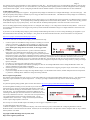
The following section describes some of the special features of the OSD Pro. The “Main Screen” figure on page 1 of the document demonstrates many of
these features. Note that most of these features need to be configured with the on-screen menus, as described in the “Configuring On-screen Menus”
section below. Note that each of these features is also described more fully in the “On-Screen Menu” section of this document.
Copyright © 2009-2012 Eagle Tree Systems, LLC
http://www.eagletreesystems.com