1
MedBASE Lite User’s Manual - Page 2
Starting the Program:
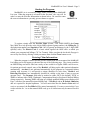
MedBASE Lite is accessed by simply double clicking on the MedBASE
Lite icon. When the program is accessed for the first time, the user will be
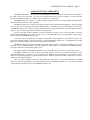
asked to enter the Provider Information as shown below. Be careful to enter
the correct information as you only get one chance to register.
To register, simply enter the Provider Name (format - 'DR. JOHN SMITH, the Group
No. ('0000' for a solo provider or the 4 digit OHIP registered group number), the Billing No. (6
digit physician number) and Specialty Code ('00' for general practitioners or the 2 digit OHIP
specialty code). The District Code is a letter which signifies the OHIP office to which you
submit your computerized billings ("N" for Toronto). Make sure that the dot beside Paytype is
next to Pay Provider by clicking it with your mouse then click the Done button to exit.
Entering Claim Information:
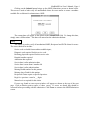
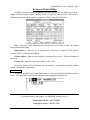
When the program is started and the provider information has been entered, the MedBASE
Lite billing screen will appear as shown at the top of the following page. The screen resembles
an OHIP billing card and is filled out exactly as one would for a regular OHIP card. However,
for patients previously entered, entry of the Health # will bring up the other patient information
automatically. Account #'s are generated automatically by the program in a sequential fashion
(starting with Account # 1) and provide a unique identifier for each claim. Health # and
Referring Physician # are automatically checked for validity at the time of entry to prevent
operator error. The Payment field must be marked as either 'HCP' (the default), 'WCB' or
'RMB' to indicate either OHIP, Workmens' Compensation Board or Reciprocal Medical Billing
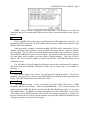
claims respectively. Entering 'RMB' will bring up a slightly modified billing screen (displayed on
Page 7) similar to the manual Reciprocal billing card. A Facility # and an In Patient Admission
date are required for hospital inpatients. You will notice that after the Service Code and # of
services are entered, the Fee Billed will be entered automatically. You may overwrite this if you
wish to edit the fee. As on the manual OHIP card, up to 10 claim items may be entered for each
card.