1
Getting Started Guide - Chapter 5: Searching an EndNote Library
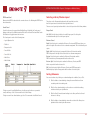
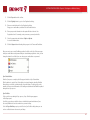
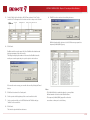
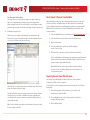
7. Click the Search button to begin the search. In a moment, EndNote displays
the search results.
The status area at the bottom of the Library window should read,
“Showing 17 of 17 references in Group”.
Creating a Smart Group
You could create a custom group, and then drag your search results to the group, but
as you entered new references into your library, you would need to keep updating the
custom group. Instead, create a smart group that updates automatically.
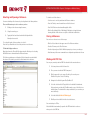
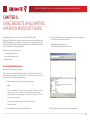
The Search panel should still display the search strategy to find “bats” for publication
years 2000 to 2013.
To use the search strategy to create a smart group:
1.
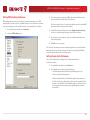
Select the Bats group set.
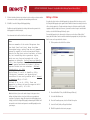
2. Click the Options button on the Search panel, and then select Convert to
Smart Group.
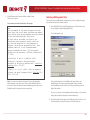
A Converted Search text box appears under the group set called Bats.
3. Type “Bats 2000-2013” to replace the Converted Search title, and then press
Enter.
If you have already clicked away from the editable title, you can right-click on
the title, and then select Rename Group.
Each time you add a reference to the library, EndNote updates the
smart group as needed.
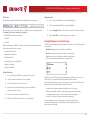
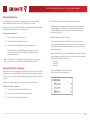
Notice in the Groups panel that EndNote automatically retains the results
in a Search Results group set. This makes it easy to display other sets of
references, but still go back and display your most recent search results.
EndNote replaces this temporary Search Results group the next time you run a
search on the library. When you close the library, EndNote removes the group.
As you enter additional references into your library, you may want to keep
track of the references that meet your search criteria. An easy way to do this is
with a smart group.
Creating a Combination Group
Let us assume that you want to combine all your custom groups and smart groups under
the Bats group set in order to better organize your EndNote references. You can do this
and use AND, OR, and NOT logic to create new, useful combined group sets.
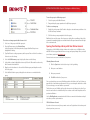
To create a combination group:
1.
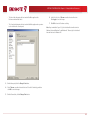
Select the Chiroptera custom group from the Bats group set.
2. From the Groups menu, select Create from Groups to open a dialog.
5-2