1
Templates in PrinTao
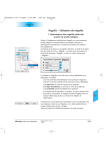
Under the second tab in the PrinTao dialogue the user can find a
number of predefined templates in order to place numerous images in certain adjustments or alignments on numerous pages very
quick and very easy. As a matter of course one can create their
own templates.
This is where PrinTao creates many opportunities for creativity. Any
image can be placed anywhere on the print page document.
All parameters for the modification of templates as well as creating
your own templates can be applied in the lower area.
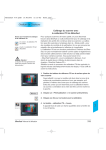
• New Template from Page
This is for creating image frame templates in three easy steps.
1. Create your own print page document. Include image frames
according the desired layout, crop or place randomly. Then
switch to the Templates tab.
2. By clicking the button for New template from page a small
save dialogue will pop open for naming and saving the new
template. Enter a name. By clicking Ok the template will be
included under the list of user defined templates.
3. Open a new print page document and activate your own
template by clicking the new entry under the template list. The
placed frames will appear instantly in the chosen sizes.
SilverFast® Manual
6.11 • SilverFastDC…, -HDR…
319