1
Transfer
Transfer
Transferring files
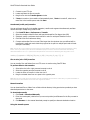
Select either the left or right middle pane and connect to a remote server. Then use one of the following
methods to transfer files and folders:
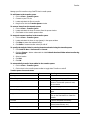
Drag-and-Drop: Place your mouse cursor over a file or folder, click and hold the mouse button,
drag the item to the opposite window, and release your mouse button.
Upload from the Menu: Select files in the left or right pane (whichever pane is currently
displaying your local drive contents) and on the menu bar choose, File > Upload.
Download from the Menu: Select files in the left or right pane (whichever pane is currently
displaying the remote drive contents) and on the menu bar choose, File > Download.Control-click Upload: Select files in the left or right pane (whichever pane is currently
displaying your local drive contents), hold down the control key click and choose Upload.
Control-click Download: Select files in the left or right pane (whichever pane is currently
displaying the remote drive contents) and on the menu bar choose, hold down the control
key, click and choose download.
Context-menu Transfers: Select the desired item(s), right-click and select upload or download
as appropriate.
Stopping transfers
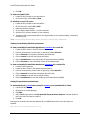
When transferring via the main interface, simply using the toolbar Stop button to abort a transfer
When using the transfer queue, select one or more items and click on the Stop icon located in
the transfer queue toolbar
Making multiple concurrent transfers
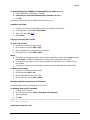
You can transfer many files simultaneously with CuteFTP using the Transfer Queue
1. Click on View > Transfer Queue
23