1
Quick Start Manual
50687 (NC)
for more information visit:
www.enttec.com/e3
Once setup, any Art-Net/sACN/ESP enabled software/app
or a lighting control/desk can be used to send DMX out
of the Ethergate Mk3. For a list of recommended apps,
please check the website www.enttec.com/e3
Status LEDs
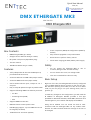
The Ethergate Mk3 comes with one RGB status LED and
two green network LED indicators located on the right
side of the front panel
RGB Status LED:
•
WHITE: idle, signifies that Ethergate is operating
normally.
•
NMU
NMU (Node Management Utility) is a free Windows and
Mac application that is used to manage compatible
ENTTEC DMX over Ethernet nodes.
NMU will help you find your unit's IP address and then
open a browser window to access the web-interface.
Please Follow these steps:
1. Download NMU from www.enttec.com/nmu
2.
Ensure that your Ethergate Mk3
physically by Ethernet cable.
is hooked up
3.
And connected to the same physical network (or
router) as the computer on which you will run NMU.
4.
Open NMU. If prompted with multiple networks,
select the correct network. (identified by the IP
address of your computer on that network)
5.
Press the Discovery button, and wait till NMU finds
all supported ENTTEC devices on your network.
6.
Once found, select Ethergate Mk3 and use the IP
address to access the web-interface via your web
browser.
GREEN: DMX Output or Input on Port1. The led
will fade from white to green. Please disable the
Port1 if you don't want it to function. Flashing
Green indicates RDM.
•
YELLOW: DMX Output or Input on Port2. The led
will fade from white to yellow. Please disable the
Port2 if you don't want it to function. Flashing
Yellow indicates RDM.
•
RED: (Blinking)Error State. No DMX will be input
or output in this state. Requires a firmware
update or needs to be rebooted. A reset might be
required, if it stays in error-mode on reboot.
•
PURPLE: (Blinking) IP Address Conflict. Please
change the IP address manually or enable DHCP.
•
CYAN: (Blinking) Merging conflict. Multiple DMX
Sources detected, either Merging is disabled or
number of sources exceed 2 (for the same
universe). User action is required to allow proper
DMX output.
Ethernet Link Speed: is ON when there is an active
Ethernet Link @ 100 mbps. It will stay OFF @ 10 mbps.
Web Configuration
The Ethergate Mk3 is configured and controlled through a
web browser running on a computer system located on the
same Local Area Network. Any modern web browser, such as
Chrome, Firefox, Internet Explorer, Safari or Opera, running
under any operating system, including Windows 7/8, Mac OS
X or Linux can be used.
Ethernet Activity: This LED blinks when there is activity
on the Ethernet network.
2