1
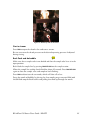
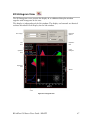
Right click to close the polygon and finish drawing the SW.
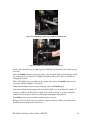
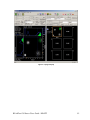
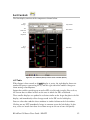
Once the SW is drawn on the left display it will also appear in the LUT on the Right
Display if Show Sort Window is checked in the right toolbar.
Data that have a left SW drawn around it will become green, and data that have a
right SW drawn around it will become red.
Data that are selected for both right and left sorting will become yellow and will not
be sorted.
Additional LUTs can now be selected, and different parameters may be selected for
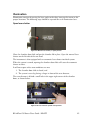
SW drawing. For example, LUT 2 may be chosen to display FL2 vs. SSC.
By drawing another SW around these new parameters it is possible to detect a particle
with four desirable characteristics (e.g., FSC, FL1, FL2, FL3; it may fluoresce green,
have particular forward and perpendicular scatter values, and not fluoresce red).
In this fashion up to 12 parameters can be set for both right and left sorting
(depending on the number of photo multiplier tubes included in the particular
instrument configuration).
SWs follow “and” logic; as additional SWs are created in multiple LUTs, only data
that is selected in all SWs will be sorted.
Data that are selected for left or right sorting in all SWs will appear green (left sort) or
red (right sort) in the left display.
An operator may also choose data outside of a SW to be sorted by again selecting the
LUT in the Right Display, drawing a SW in the left display, clicking on Left or Right
and clicking Outside in the left toolbar. This allows for “not” logic to be used when
multiple SWs are drawn in multiple LUTs.
Overall sort statistics are displayed on the left display, while individual statistics for
each LUT are displayed next to each LUT.
LUT statistics report the percentage of particles chosen for left sort, right sort, neither
or both for that particular LUT.
Overall sort statistics report the combined percentage of particles selected for left,
right, neither or both sort when SWs have been drawn in multiple LUTs.
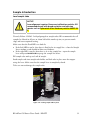
The Reset button (in the sort window function area) can be used to reset SWs drawn in
a particular LUT window by selecting the LUT and clicking on Reset.
All LUT SWs can be reset by clicking the Reset All button on the right toolbar).
Individual LUT SWs can also be made active or inactive by selecting the LUT and
clicking the Active button in the sort window function area. SWs may be moved or
stretched by clicking on the Modify button.
LUT Filters
Spigot software allows data filtering based on SWs for easy identification of
populations and subpopulations across many parameters. When LUT filters are
BD inFlux Cell Sorter Users Guide - DRAFT
37