1
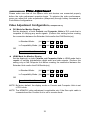
Video Adjustment Configuration (EQ) (on Console Unit only)
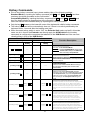
Users can adjust the video Equalization (sharpness) through hotkey commands or
Push-Button configurations by following the instructions listed below:
z EQ Adjustment through hotkey:
Set the video equalization to Level Low
in Standard Mode:
[left Ctrl + left Ctrl + Q + L ]
in Compatibility Mode: [left Ctrl + left Ctrl + E + Q + L ]
OR
Set the video equalization to Level Enhanced (Factory Default)
in Standard Mode:
[left Ctrl + left Ctrl + Q + A ]
in Compatibility Mode: [left Ctrl + left Ctrl + E + Q + A ]
OR
Set the video equalization to Level High
in Standard Mode:
[left Ctrl + left Ctrl + Q + H ]
in Compatibility Mode: [left Ctrl + left Ctrl + E + Q + H ]
z EQ Adjustment through Push-Button:
No matter whether the Mask Hotkey Switch is set to ON or OFF, through PushButton and keystroke(s), users can
set the video equalization to Level Low:
Press & Hold Push Button 2 Sec. + Q + L
OR
set the video equalization to Level Enhanced (Factory Default):
Press & Hold Push Button 2 Sec. + Q + A
OR
set the video equalization to Level High:
Press & Hold Push Button 2 Sec. + Q + H
21