1
11
11
Getting Started
Begin Editing a Program
Step 1:
Enter the Program
Mode
Once the DirectSOFT32 Programming Software is installed in you computer, you
will want to begin to use it. The following steps will show you the basic steps for
editing with DirectSOFT32. This will not be an attempt to teach you how to
develop a control program, but it will give you the basics to get started using
DirectSOFT32 so that you can edit a program.
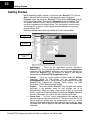
To begin a new program (project) double–click on DirectSOFT Programming 4
located in the Applications folder of the menu tree.
Step 2:
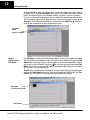
You should now see the New Project window. You can name a project using any
Start a New Project combination of 15 characters (including spaces). “EXAMPLE1” is the project name
used for this example. Move the selection bar to the PLC Family and CPU Type. For
this example, use a PLC belonging to the DL05/06/105/DL205/DL405 families. Click
on OK after you have made your Family and Type selections. If you have a DL305
type PLC, be sure to select it from the choices. Keep in mind the available
mnemonics, processing rules and even the tool bar characteristics are tailored to the
Family and Type selections that you make.
Use this icon to
start a new project
and open up a
fresh program
window.
New Project
Window
Type in a name
for your project
Select the
PLC Family..
Select the
CPU Type..
..then click on
OK
DirectSOFT32 Programming Software Quick–start Manual, 5th Edition, 8/02