1
IV. The Schedule Request Page: What It Contains and How to
Use It.
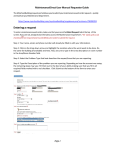
To reach the Schedule Request page, simply click on the Schedule Request tab at the
top of the page. See the red arrow below:
The Schedule Request page is where you will fill out and submit your schedule
request forms. Once submitted, your request form will proceed on to the next person it
has been routed to by the Administrator during the Account Setup process. This could
be the Administrator him/herself, who can not only approve a schedule request but can
also activate it. Or it could first go to one, or a series of, Site Administrators who will
then decide whether or not to approve your request. Based on their answer, your request
will proceed on down the path routed for it until it is assigned its final status.
A scheduling request can have one of five statuses during the routing process:
1) Submitted: This is the status that facility scheduling requests hold as soon as
they are submitted and before any decisions have been made concerning their
approval.
2) Approved: Indicates that the request has been approved. However, it may have
only passed through one person and may not have met final approval and
activation yet. (Only Administrators can activate a schedule.)
3) Canceled: This is used when a schedule was active at one time and has since been
canceled. It is always a good idea to include the reason that the schedule was
canceled in the Notes field.
4) Declined: The requested schedule has been declined by the Administrator or the
Site Administrator. We recommend listing a reason in the Notes field.
5) Duplicate: This status indicates that the request has already been entered.
9