1
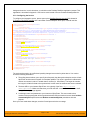
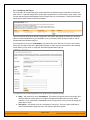
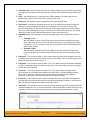
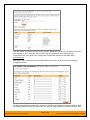
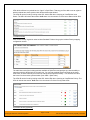
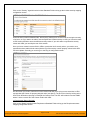
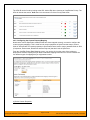
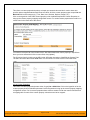
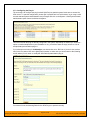
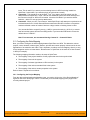
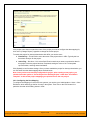
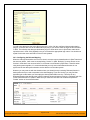
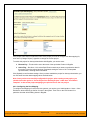
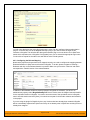
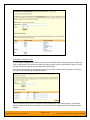
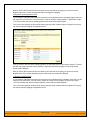
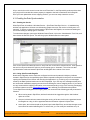
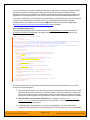
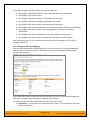
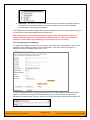
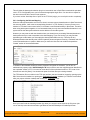
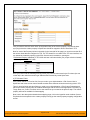
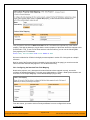
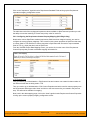
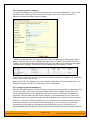
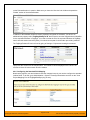
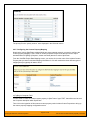
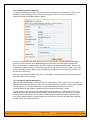
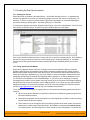
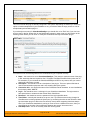
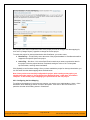
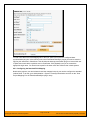
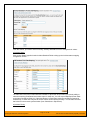
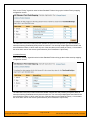
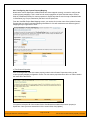
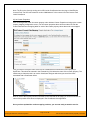
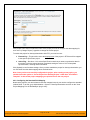
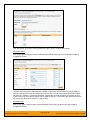
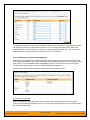
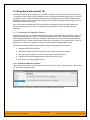
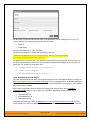
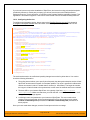
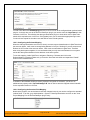
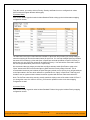
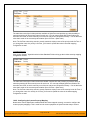
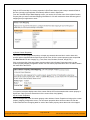
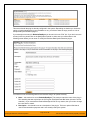
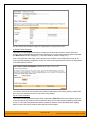
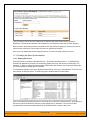
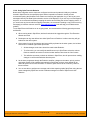
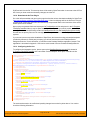
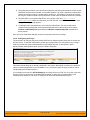
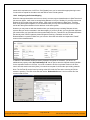
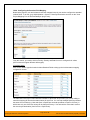
Active Flag – Set this to ‘Yes’ so that SpiraTeam knows that you want to synchronize data for this project. Once the project has been completed, setting the value to “No” will stop data synchronization, reducing network utilization. Click [Update] to confirm these settings. Once you have enabled the project for data-synchronization, you can now enter the other data mapping values outlined below. Note: Once you have successfully configured the project, when creating a new project, you should choose the option to “Create Project from Existing Project” rather than “Use Default Template” so that all the project mappings get copied across to the new project. 5.2.2. Configuring the User Mapping To configure the mapping of users in the two systems, you need to go to Administration > Users > View Edit Users, which will bring up the list of users in the system. Then click on the “Edit” button for a particular user that will be editing work items in TFS: You will notice that below the Active flag for the user is a list of all the configured data-synchronization plug-ins. In the text box next to the TFS Data-Sync plug-in you need to enter the full name of this Windows User (not the login). This is the name of the user as they appear inside work items within TFS: © Copyright 2006-2015, Inflectra Corporation Page 59 of 168 This document contains Inflectra proprietary information