1
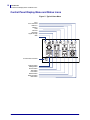
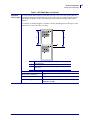
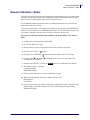
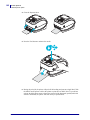
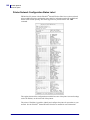
Printer Configuration Manual Calibration - Media Manual Calibration - Media The printer may need to have the sensors and the label length adjusted for a new media. Small variations in media from manufacture to manufacture and even from batch to batch of media may necessitate recalibrating the printer for the media being used. Use the Manual Calibration procedure when you change media unless to it media from the same batch you have been using. The primary method used to set the printer for media in use is the control panels SENSORS menu to access the MANUAL CALIBRATION procedure. Use the following procedure to set your printer’s language when the printer is turned on and in the ‘Ready’ state. Procedure for calibration of label media with liner and an inter-labels ‘GAP’ between labels. 1. Load the printer with your chosen label media. 2. Peel the first label off the liner. 3. Place the label-less liner over the platen (driver roller) and close the printer. 4. Press the menus ‘Home’ ( ) button. 5. Navigate to the ‘SENSORS’ ( ) menu button and press the ‘Select’ (✔) button. 6. Use the ‘Left’ () and ‘Right’ () navigation arrows to browse to the ‘MANUAL CALIBRATION’ procedure. 7. Select the select button (—) below the START on the lower right hand of the display. 8. The display will have a message: LOAD BACKING PRINTER PAUSED 9. Press the Pause button once to start the calibration procedure. 10. When it have finished the first part the display will now read: RELOAD ALL CONTINUE. 11. Press the Pause button once again to continue the calibration procedure. The printer will begin feeding several labels and then it will stop with the display message reading: PRINTER PAUSED 8/12/2013 ZD500 Series™ Thermal Transfer Printer User’s Guide P1062653-001 Rev. A 75