1
Setup
Bluetooth Option Configuration
Bluetooth Option Configuration
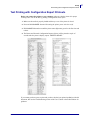
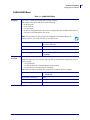
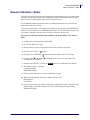
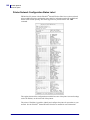
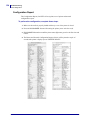
The Zebra Setup Utilities provides a quick and easy way to configure a Bluetooth wireless
connection with your printer.
1. Double-click the Zebra Setup Utilities icon on your desktop.
2. Connect a USB cable from your printer to your computer.
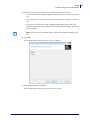
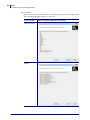
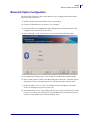
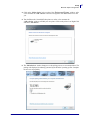
3. On the first ZSU screen, highlight the printer displayed in the window and click on the
Configure Printer Connectivity where shown.
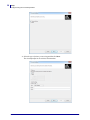
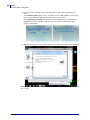
4. Select “Bluetooth” on the Connectivity Type screen and click on the Next button.
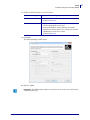
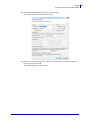
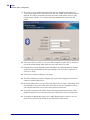
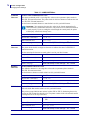
5. On the Bluetooth Settings screen, check “Enabled” to enable Bluetooth functionality.
6. In the Friendly Name text field, set the Bluetooth name of the device. This name appears
during device discovery and the master device will label the printer with this name.
7. Set Discoverable to “On” or “Off” to set whether the device will appear when master
devices are looking for new devices to pair with.
8. Set Authentication to “On.” (Note: This setting does not exist in Link-OS, but you need to
turn on if you want to enter a PIN in ZSU. Actual authentication setting on the printer is
set in the Security Mode on the Advanced Settings menu.)
8/12/2013
ZD500 Series™ Thermal Transfer Printer User’s Guide
P1062653-001 Rev. A
43