1
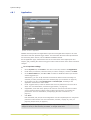
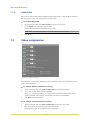
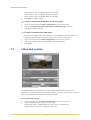
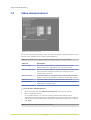
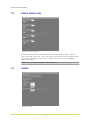
Access the webpages
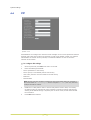
Assign a static IP address
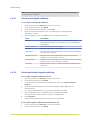
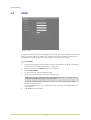
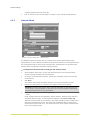
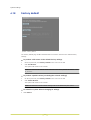
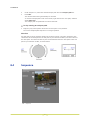
To assign a DHCP server
1
Record the HSD820's MAC address (see the Serial no. column in Siqura Device Manager)
for future identification
2
In the list of detected devices, right-click the device with the network property that you
would like to change.
3
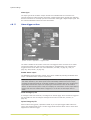
Click Change Network Settings.
4
In Change Network Settings, click Enable DHCP, and then click OK.
5
In the pop-up window indicating that you have successfully changed the settings, click
OK.
6
Wait one minute, and then rescan the network.
You can identify the device by its MAC address.
7
To access the webpages of the HSD820, double-click its entry in the list of found
devices.
Note: A DHCP server must be installed on the network in order to provide DHCP network
support.
4.5
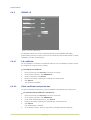
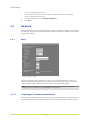
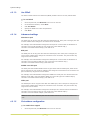
Log on to the unit
Users with a valid account for the HSD820 can log on to the unit.
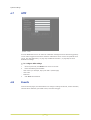
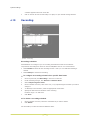
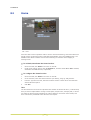
To log on
1
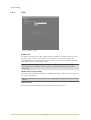
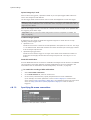
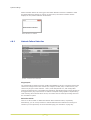
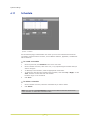
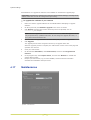
In the Authentication box, log on with the account that was created for you.
User name and password are case sensitive.
The default user name set at the factory for the HSD820 is "Admin" with password
"1234".
2
Click Log In.
Note: To prevent unauthorised access from people using the default account, we
recommend that the administrator changes the default password after first login and creates
separate user accounts as needed.
17