1
W O R K I N G
W I T H
C A P T U R E P O S T
Important!
Entering orders directly into CapturePost at the time of shooting is optional. Orders may
be scanned into DataPost at a later stage using the same order barcodes as used by
CapturePost. Furthermore orders may also be entered directly into
NeoPack/Professional either manually, by scanning a barcode or by importing a text file.
Folders
When preparing a job file (in either DataPost, or one of the "Neo" programs) the user has
the ability to group the subjects into folders (eg grades and teams). This has extremely
useful implications when the job file is used with the production applications,
NeoPack/Professional, NeoComposite and NeoGroup.
CapturePost allows the user to change an existing folder for a subject or assign a folder to a
new subject. In this way, for example, a new student who is not yet in the database can be
assigned to a folder at the time of shooting.
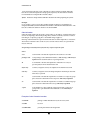
To set the home folder for a subject.
1.
Ensure the subject's details are displayed in the details area
2.
From the Edit menu select Set subjects home folder or enter Ctrl-H from
the keyboard
3.
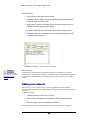
The pop up window allows you to select the home folder for the subject
FIGURE 3.3 Setting a home folder
19