1
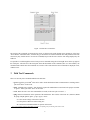
Figure 1: Field Tool User Interface.
The results of the command, as returned by the motes, are shown in the result (bottom) pane. Results are of the form
“mote number: command results”, with one entry per mote that received the command. Note that problems with radio
connectivity may lead the mote to execute the command, but prevent the mote’s answer from being displayed by the
field tool.
It is possible to scroll through the answers from previous commands using the left and right arrows at the top-right of
the result pane. The title area of the result pane shows the destination of the command (ALL or a mote number), the
command name and the time the command was executed. The results from the latest command are displayed in red,
without a time.
3
Field Tool Commands
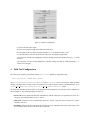
There are currently four commands defined in the field tool:
• green: toggle the green LED.2 This can be used to check that field tool/mote communication is working. Motes
just return “done” as the result.
• beep: sound the mote’s sounder – this obviously requires the standard mica sensor board. The purpose is similar
to “green”. Motes just return “done” as the result.
• reset: Reset the mote. Note: this command has no result (as the mote just reset itself...).
• ping: Return vital statistics on the operation of the TASK-mote. The result is of the form “X V, Parent N, RAM
R, qln Q, mhq M, dpth D, qual L, q1 Q1, q2 Q2”, where:
– X is the current voltage of the mote’s batteries.
– N is the parent of this mote in the routing tree.
– R is the amount of RAM available for queries on this mote.
2 mica2dot
motes do not have green LEDs, so you won’t see anything, but you will still get the “done” result.
2